
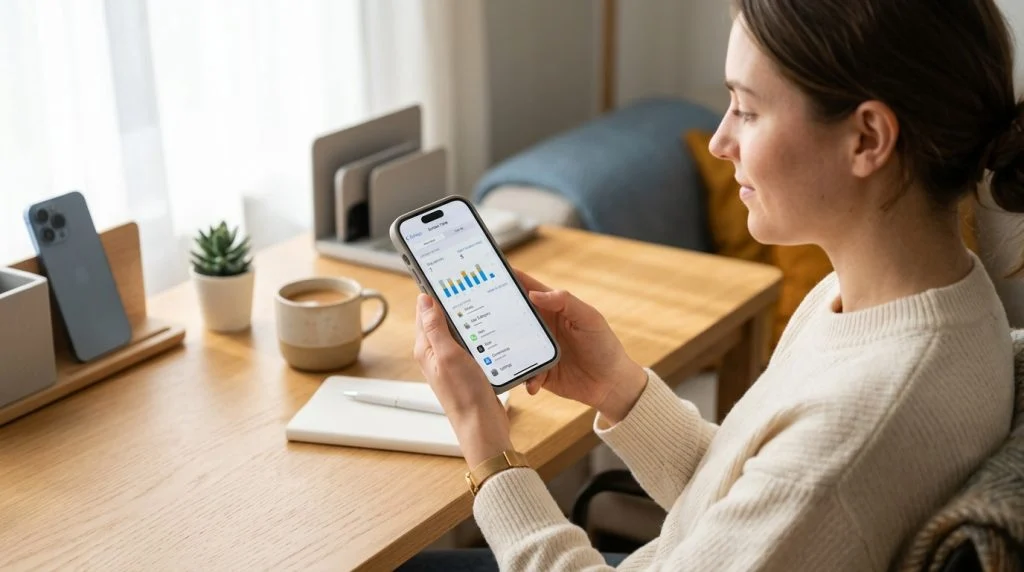
Handing an iPhone to a child or an employee is a major milestone, but it also introduces real friction. For parents, the phone represents constant digital stimulation, unvetted online interactions, and sleepless nights. For business managers, it means balancing operational productivity against the risks of data mishandling. Learning how to monitor iPhone screen time is often the first line of defense, helping you establish healthy boundaries before digital habits spiral out of control.
Part of our complete guide: Parental Controls for iPhone & iPad: The Complete Guide
Most people start by turning on Apple built-in Screen Time feature. It is convenient, free, and baked directly into iOS. Yet many parents quickly notice its blind spots: children learn workarounds within days, and the numbers on the screen do not tell you what is actually happening behind the glass. A child spending two hours on Safari might be researching a history project or browsing dangerous message boards. A generic timer simply cannot tell the difference.
This guide walks you through the practical reality of iOS supervision. We will examine how to extract the absolute best performance from Apple native settings, why those controls often fall short under real-world scrutiny, and when advanced solutions are required to maintain genuine safety and compliance.
Why Keeping Track of iOS Device Activity Matters
Smartphones are engineered to command attention. Between infinite scrolling, algorithmic recommendations, and aggressive push notifications, maintaining self-regulation requires deliberate effort. For developing minds and busy professionals alike, unregulated screen exposure carries measurable consequences.
The Impact of Excessive Screen Use on Well-Being
Unrestricted screen exposure directly degrades adolescent mental and physical health. Pediatricians have long warned about the interference between blue light emissions and the body natural circadian rhythm. When teens use devices late into the night, melatonin production drops, leading to chronic sleep deprivation, shortened attention spans, and heightened anxiety.
According to research highlighted by the American Academy of Pediatrics, excessive and unmonitored media exposure correlates with reduced physical activity, behavioral shifts, and lower academic performance. Beyond the physical impact, constant social media availability exposes minors to peer pressure, algorithmic rabbit holes, and cyberbullying. Monitoring usage is not about micromanagement; it is about protecting basic health and cognitive development.
Parental Oversight vs. Workplace Productivity Tracking
While the technical mechanics of monitoring an iPhone are similar across use cases, the intent and operational requirements differ substantially between homes and enterprises:
- Parental Supervision: The primary objective is physical and emotional welfare. Parents must prevent access to inappropriate content, curb digital addiction, and intervene if predatory behavior or bullying occurs. The dynamic is protective, developmental, and relational.
- Workplace Oversight: The focus shifts strictly to productivity, resource allocation, and intellectual property defense. Employers need to ensure that company-owned handsets are not used for unauthorized personal business, that client confidentiality is preserved, and that billing hours reflect actual work.
Understanding these distinct goals determines which tools you need. A parent might focus heavily on communication logs and bedtime shutoffs, while an operations manager prioritizes app-inventory compliance and network activity.
How to Monitor iPhone Screen Time Using Built-In Settings
Apple includes a robust set of native controls inside iOS. If your goal is basic scheduling and high-level usage summaries, the native platform is the logical starting point. The setup requires configured Apple IDs and active iCloud accounts.
Setting Up Screen Time via Apple Family Sharing
The most effective native method is managing the child device from your own iPhone through Family Sharing. This prevents you from needing physical possession of their phone whenever you want to adjust a rule. Official platform instructions detailed in Apple Screen Time Support outline the foundational steps:
- On the parent iPhone, open Settings and tap your name at the top to access your Apple ID profile.
- Tap Family Sharing, select Set Up Your Family (or tap the user-add icon in the upper right), and follow the prompts to invite your child or create an Apple ID for a minor.
- Once the child account is enrolled, navigate back to Settings → Screen Time.
- Scroll down to the Family section and select your child name.
- Tap Turn on Screen Time and tap Continue.
- When prompted, specify that this device belongs to a child.
- Create a dedicated 4-digit Screen Time Passcode. Choose digits that your child cannot guess; avoid birthdays, street numbers, or the unlock PIN of your own phone.
Configuring Downtime, App Limits, and Restrictions
Once linked, you can configure four distinct protection layers directly from your phone:
- Downtime: Establishes a scheduled digital curfew. During Downtime, only phone calls and apps you explicitly place on the “Always Allowed” list remain accessible. A standard practice is scheduling Downtime from 9:00 PM to 7:00 AM on school nights.
- App Limits: Allows you to set daily caps on specific categories (e.g., Games or Social) or individual applications. Once the daily limit expires, the app icon dims, and an hourglass prompt blocks further access unless approved with the master passcode.
- Always Allowed: Contains essential utility and communication apps. Navigation tools, standard phone calls, and family messaging threads should reside here so the child can reach you in an emergency even when Downtime is running.
- Content & Privacy Restrictions: The foundational security layer. Within this menu, toggle restrictions on to block adult web content, prohibit unauthorized in-app purchases, prevent account modifications, and silence explicit media across the device.
Common Limitations of Apple Native Screen Time
Native controls are helpful for well-behaved kids who need gentle boundaries. However, as children enter their teenage years, technical curiosity quickly outpaces Apple security perimeter. In our quarter-century of designing device oversight software, we have watched youngsters consistently exploit the exact same systemic vulnerabilities across iOS updates.
Everyday Workarounds Used by Tech-Savvy Children
Apple engineers must balance user convenience against strict lockdown mechanisms. That balance leaves holes that minors discover on forums, social media channels, and school playgrounds:
- The Time Zone Exploit: If location services are relaxed, children can navigate to Settings → General → Date & Time, disable automatic sync, and roll the clock back several hours. The operating system assumes Downtime has not yet arrived, instantly unlocking restricted apps.
- Delete and Re-download: When an app hits its daily limit, a child can delete it from the home screen, open the App Store, tap their purchased profile, and reinstall it from iCloud. In several iOS releases, this simple action resets the local time tracker for that application.
- iMessage Video Exploits: If YouTube or Safari is blocked, kids often send YouTube links to themselves via iMessage. Tapping the thumbnail inside the chat window plays the video through an inline player, bypassing the Safari web filter entirely.
- Screen Recording Passcode Theft: Children routinely enable the built-in iOS Screen Recording utility before handing their phone to a parent to ask for “five more minutes.” As the parent enters the Screen Time passcode, the device records the screen, capturing the secret code for future use.
The Lack of Deep Contextual Visibility
The deeper limitation of Apple Screen Time is structural: it provides metrics, not context. It tells you that an iPhone was active for six hours, but it cannot answer critical safety questions:
- Who is the child exchanging messages with on encrypted platforms like WhatsApp, Telegram, or Snapchat?
- What specific queries were typed into incognito web searches?
- Where did the device physically travel throughout the afternoon?
- Are incoming calls originating from known contacts or unlisted, suspicious numbers?
For parents dealing with severe safety risks or managers overseeing mission-critical corporate hardware, aggregate minutes are simply insufficient. You need access to substance, not just screen-on time.
| Monitoring Capability | Apple Native Screen Time | Advanced Monitoring (e.g., SPYERA) |
|---|---|---|
| High-Level Usage Durations | Yes (Hours/Minutes per App) | Yes (Detailed timestamped sessions) |
| Scheduled App Lockouts | Yes (Downtime / App Limits) | Yes (Remote management rules) |
| Message Content & Chat Logs | No (Zero visibility into text) | Yes (iMessage, WhatsApp, Socials) |
| Keystroke Logging | No | Yes (Captures search queries & unsent text) |
| GPS Tracking & Geofencing | Rudimentary (via Find My only) | Comprehensive historical routes & alerts |
| Bypass Resistance | Low (Easily circumnavigated) | High (Runs at system level) |
Advanced Ways to Monitor iPhone Screen Time Remotely
When native controls prove inadequate to keep a vulnerable family member secure or protect a company from internal risks, dedicated monitoring platforms bridge the gap. Rather than simply logging that a screen was powered on, professional solutions capture underlying system events to provide a cohesive view of device activity.
When to Deploy Professional Monitoring Software
Upgrading to specialized oversight tools becomes necessary in specific, high-stakes scenarios:
- Suspected Cyberbullying or Predation: When a child shows signs of behavioral distress, withdrawal, or sudden academic collapse, parents cannot afford to guess what is occurring inside private chat applications.
- Habitual Policy Circumvention: When teens repeatedly bypass Apple restrictions, reset passcodes, or use secondary hidden browsers to view dangerous materials.
- Corporate Asset Security: When company-owned iPhones have access to sensitive client databases, customer financial records, or proprietary trade secrets. Businesses facing risks of corporate espionage need comprehensive logs of outgoing communications and file transfers.
Deep Insight Through SPYERA
For individuals requiring complete visibility, tools like SPYERA iPhone monitoring software operate far beyond the surface-level timers of standard operating systems. Instead of generating a passive weekly bar chart, the system captures actionable intelligence and streams it directly to a secure web-based dashboard.
This allows parents and employers to inspect precise operational details:
- Application Transcripts: Direct insight into outgoing and incoming text from popular platforms including WhatsApp, Skype, and standard SMS, allowing you to identify harmful interactions immediately.
- Keystroke Tracking: With a dedicated iPhone keylogger, you can inspect search queries, unposted drafts, and typed passwords, ensuring that harmful search terms or confidential leaks are detected early.
- Real-Time Location Logs: Continuous GPS positioning with detailed breadcrumb trails, moving beyond simple instantaneous location checks to show complete travel history over days or weeks.
- Media Auditing: Remote inspection of photos and videos captured on the device, ensuring inappropriate material is not being saved or distributed.
Because the platform uploads data automatically over cellular or Wi-Fi connections, administrators can review these metrics remotely from any desktop or mobile browser without having to manually confiscate the device every evening.
Best Practices for Ethical and Effective Device Monitoring
Technology alone cannot resolve behavioral or managerial challenges. Monitoring software is an enforcement tool, not a replacement for clear expectations and sound policy. Applying oversight without transparency often breeds resentment, resistance, and covert behavior.
Establishing Open Communication with Children
Surprise oversight usually backfires. If a teenager suddenly discovers they are being restricted without warning, it damages mutual trust. A healthier approach is establishing a structured digital agreement before configuring tools on their phone.
- Frame Monitoring Around Safety, Not Control: Clarify that you are not reading their thoughts or judging benign conversations with friends; your priority is protecting them from predatory strangers, identity theft, and algorithmic exploitation. Resources from Common Sense Media offer excellent guidance on age-appropriate digital boundaries.
- Establish Clear, Unchanging Rules: Document which applications are authorized, define specific offline hours (such as family dinners and overnight charging in the hallway), and establish upfront consequences for deliberate policy breaches.
- Earn Greater Autonomy Through Responsibility: Set expectations that restrictions will ease as the child demonstrates maturity, honest communication, and healthy offline habits over time.
Adopting tools to protect your family works best when it is paired with regular, non-judgmental conversations about what kids encounter online.
Legal and Ethical Standards in the Workplace
Deploying monitoring tools in a professional setting requires strict adherence to labor laws and ethical principles. Employers cannot monitor devices indiscriminately without exposing their organization to serious legal liability.
- Ownership Matters: Never install monitoring software on an employee personally owned device (BYOD) unless strict data partitioning and explicit consents are formally established. Monitoring should be reserved for company-purchased and company-provisioned equipment.
- Written Consent and Notice: Every employee who receives an enterprise iPhone should sign an Acceptable Use Policy (AUP). This document must state clearly that the device is business property, that usage is subject to logging, and that there is no expectation of personal privacy while operating the terminal.
- Limit Access to Relevant Personnel: Usage data should only be reviewed by authorized HR, security, or managerial staff when investigating policy violations, compliance audits, or suspicious productivity anomalies.
How SPYERA Can Help
SPYERA has helped parents and employers with monitor iPhone screen time since 1999. Monitor calls, messages, locations, and app activity on Android, iPhone, Windows, and Mac — used responsibly, with consent, on devices you own or are authorized to monitor.
Frequently Asked Questions
Can my child tell if I am monitoring their iPhone screen time through Family Sharing?
Yes. Apple informs family members when Screen Time controls are active. Children can see their daily limits, Downtime schedules, and remaining minutes directly on their devices.
Why does Apple Screen Time occasionally show inaccurate usage reports?
Discrepancies often occur due to background app refreshes, corrupted iCloud sync data, or websites keeping background tabs active in Safari. Restarting both devices or toggling Screen Time off and on usually clears sync delays.
How do kids bypass native Screen Time limits?
Children frequently exploit loopholes such as changing device time zones, deleting and reinstalling apps via iCloud purchase history, using unmonitored browser extensions, or opening video links inside messages rather than dedicated apps.
Is it legal to monitor an employee company-issued iPhone?
In most jurisdictions, employers can monitor company-owned devices provided there is a legitimate business purpose and a clear, written acceptable-use policy signed by the employee disclosing that communications and usage may be reviewed.
Can I monitor iPhone screen time remotely without having physical access to the device every day?
Yes. Apple Family Sharing sends usage metrics to the parent device via iCloud. For deeper oversight involving detailed keystrokes, messages, and location, dedicated monitoring software like SPYERA provides remote dashboard access without requiring daily physical contact with the phone.