
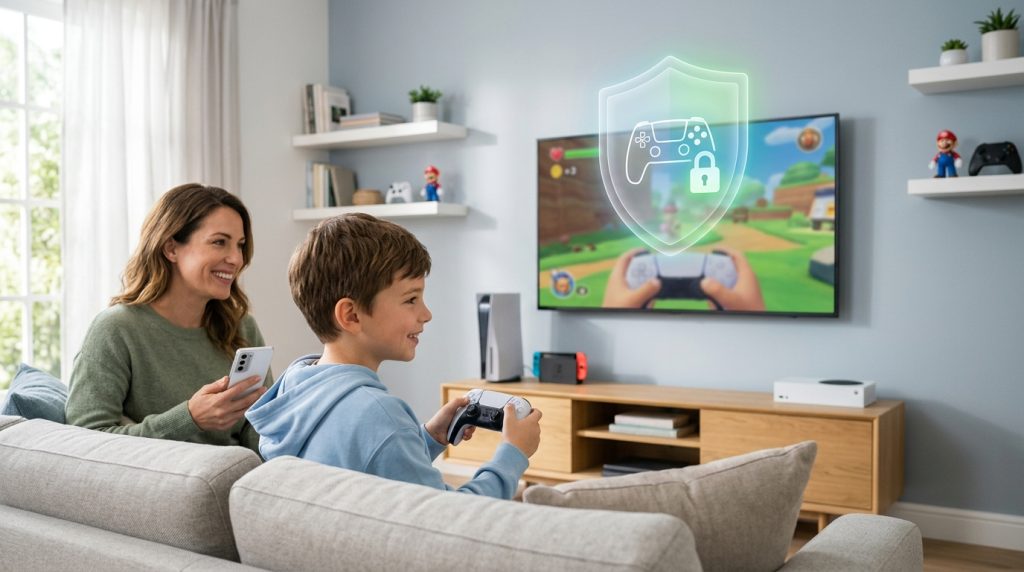
Modern gaming consoles are no longer isolated boxes plugged into a television. Today, a PlayStation 5, Xbox Series X, or Nintendo Switch functions as a fully realized social network, digital storefront, and multimedia streaming hub. While gaming offers rich entertainment, creative problem-solving, and genuine social connection for kids, it also opens direct digital pathways into your living room. Setting up gaming console parental controls is the single most effective way to manage these channels, ensuring young players enjoy their favorite titles without unvetted exposure.
Part of our complete guide: Phone Monitoring Software: The Complete Guide
Many parents assume that buying an age-appropriate game on a disc or cartridge eliminates online risk. Unfortunately, once that game connects to online multiplayer servers, children interact with unvetted players across the globe in real time. Built-in system tools provide a robust first line of defense. However, understanding what these controls can—and cannot—do is crucial for creating a sustainable safety perimeter around your family’s digital recreation.
With more than twenty-five years of engineering monitoring software and advising families on digital boundaries, we have watched gaming evolve from split-screen offline play into expansive, always-on ecosystems. Protecting your child requires moving beyond simple content ratings to address the nuances of modern live-service gaming.
Hidden Online Risks Kids Face on Modern Gaming Consoles
Video games today are built around persistent engagement. While the gameplay itself might be rated for everyone, the underlying social infrastructure exposes minors to several distinct risks that demand parental attention.
Unfiltered Voice and Text Chat Interactions with Strangers
Most popular multiplayer titles—including battle royales, sandbox builders, and sports simulations—rely on squad communication. By default, games place players in open voice channels with teammates and opponents alike. While helpful for coordination, these open channels routinely expose young players to toxic language, hate speech, bullying, and aggressive behavior.
More concerning is the potential for predatory contact. Bad actors often use the shared camaraderie of cooperative gameplay to build rapport with young players, attempting to move the conversation from public team chat to private messaging or external social platforms. Without active communication limits, a child’s gaming session can quickly become an unmonitored chat room.
Exposure to Predatory Microtransactions and Unauthorized Purchases
Free-to-play business models generate billions by selling virtual cosmetics, battle passes, loot boxes, and character upgrades. These systems utilize sophisticated behavioral psychology, time-limited offers, and peer dynamics to encourage impulse spending.
If a parent’s credit card or digital wallet is linked to a console account without purchase authentication, children can accidentally run up hundreds or thousands of dollars in charges. Even when money is not spent directly, the psychological pressure to purchase in-game items to fit in with peers can cause significant anxiety and friction at home. For more insight on establishing financial boundaries and internet habits, the Federal Trade Commission provides guidance on children’s digital consumer safety.
Web Browser Access and Unrated Content Streaming on Consoles
Modern consoles include access to media streaming apps like YouTube, Twitch, Netflix, and web browsers. While dedicated web browser icons are hidden on some platforms, children easily uncover embedded browser windows through user manuals, login prompts, and social media integration.
Unrestricted web access allows kids to search the open internet, bypass domestic Wi-Fi filters, and view unrated content directly on the console. Live streaming apps present a parallel challenge: streamers frequently use vulgar language or promote mature products during gameplay broadcasts that appear child-friendly at first glance.
How to Configure Gaming Console Parental Controls
Each major platform manufacturer provides native family management tools. To manage these effectively, always set up the console with your own adult administrative account first, then create a separate, managed child account for your child. Never let a child play under an adult profile, as this renders all hardware-level restrictions useless.
PlayStation Network (PS4 & PS5): Setting Playtime Limits and Age Ratings
Sony’s PlayStation Network offers granular control through its Family Management dashboard, accessible directly on the console or via a web browser.
- Create Family Members: Navigate to Settings > Family and Parental Controls > Family Management on your PS5 or PS4. Select Add Family Member and create a child account with their accurate birth date.
- Playtime Management: Within Family Management, select the child’s profile and choose Playtime Settings. You can set daily playtime hours, define permitted play windows (e.g., 4:00 PM to 7:00 PM), and choose whether the console simply notifies your child when time expires or automatically logs them out.
- Age Level Filters: Under Parental Controls, adjust the age restriction slider for PS5, PS4, and Blu-ray/DVD media. This blocks the installation or launch of games rated above your specified threshold (e.g., ESRB Everyone 10+, Teen, or Mature 17+).
- Communication and Spending Limits: Set Communication and User-Generated Content to “Restricted” to prevent messages from players outside their approved friends list. Set the Monthly Spending Limit to zero to completely block wallet deductions.
Xbox Family Settings: Restricting Communications and Content Filters
Microsoft integrates console safety directly into its broader Microsoft Family Safety architecture. While settings can be adjusted on the Xbox Series X/S or Xbox One, managing them via the Xbox Family Settings mobile app (iOS/Android) offers the smoothest experience.
- Link Child to Family Group: Sign in at Microsoft’s family safety portal or open the Xbox Family Settings app. Add your child’s Microsoft account to your family group.
- Configure Content Filters: On the console, go to Settings > Account > Family Settings > Manage Family Members. Select your child’s profile, tap Access to Content, and select the appropriate age rating. Games exceeding this rating require a parent passkey to launch.
- Manage Social Interactions: Select Privacy & Online Safety > Xbox Privacy. Choose “Child Defaults” or customize manually. Set Others can communicate with voice, text, or invites to “Friends” or “Block.” Ensure You can join cross-network play is reviewed carefully, as cross-play connects Xbox users with PC and PlayStation players.
- Ask to Buy: Enable the “Ask to Buy” toggle in the mobile app. Whenever your child wants to download a free demo or purchase a game, the system sends an instant push notification to your phone for approval.
Nintendo Switch: Utilizing the Mobile Companion App for Screen-Time Management
The Nintendo Switch relies on the dedicated Nintendo Switch Parental Controls smartphone app to manage its hybrid handheld/docked hardware.
- Link the App: Download the app to your mobile device, sign in with your parent Nintendo Account, and link the console by entering the six-digit registration code displayed on the Switch under System Settings > Parental Controls.
- Set Playtime Alarms: Set daily limits ranging from 15 minutes to six hours. You can assign different durations for weekends. Enable Suspend Software if you want the game to freeze immediately when time expires, rather than just sounding a notification chime.
- Restrict by Age Rating: Choose from preset age tiers (Child, Pre-Teen, Teen) or select Custom Settings to manually restrict games based on ESRB ratings, disable posting screenshots to social media, and block communication with other users.
- Lock Down the Nintendo eShop: Open your account settings via a web browser at accounts.nintendo.com, select Family Group, tap the child’s account, and disable access to the eShop or require a password entry for all purchases.
To help you decide which configurations match your child’s developmental stage, review the baseline console comparison below:
| Platform | Primary Management Method | Communication Controls | Purchase Prevention |
|---|---|---|---|
| PlayStation 5 / PS4 | Console UI & Web Dashboard | Block non-friends, mute voice, restrict UGC | Monthly spending cap ($0.00 default) + Checkout PIN |
| Xbox Series X/S | Xbox Family Settings Mobile App | Granular cross-network voice/text permissions | “Ask to Buy” push notifications + Wallet lock |
| Nintendo Switch | Nintendo Switch Parental Controls App | Block in-game chat, restrict friend requests | eShop password requirement + Web-based restrictions |
Limitations of Built-In Console Safety Features
Configuring hardware-level settings is essential, but it is not an airtight solution. Console-makers design parental controls to regulate their proprietary platforms, leaving several structural blind spots that tech-savvy kids navigate easily.
Inability to Monitor Third-Party Communication Apps like Discord
PlayStation and Xbox now offer native integration with Discord, the world’s most popular gaming chat application. While this allows players to chat with friends across PC and mobile while sitting on the couch, it bypasses native console communication filters.
Discord voice servers and direct messages are governed by Discord’s independent privacy settings, not your console’s family management rules. If a child links their Discord account to their console, they can join unmoderated community servers featuring explicit voice channels, media sharing, and unsolicited private messages that no console setting can detect or log.
Workarounds Kids Use to Bypass Hardware-Level Restrictions
Young gamers frequently discover loopholes to circumvent console restrictions through peer forums, social media videos, or simple trial and error:
- Guest Profiles: If you allow the creation of unlinked guest accounts, kids can switch profiles in seconds to play restricted games or browse the web without limits.
- Factory Resets and Time Zone Manipulation: Adjusting system clocks offline or performing partial cache resets can occasionally clear local playtime counters without notifying parent apps.
- Alternate Wi-Fi Connections: Connecting the console to an unsecured neighbor Wi-Fi network or a mobile phone hotspot bypasses router-level domain blocks and content filters.
To mitigate these gaps, always set a master “Parent/System PIN” on the console itself to lock down system settings, block the creation of new user profiles, and prevent guest logins.
Blind Spots Across Cross-Platform Gameplay and External Accounts
Modern titles like Fortnite, Roblox, Minecraft, and Call of Duty require third-party publisher accounts (e.g., Epic Games, Microsoft/Xbox Live, Activision). These publishers maintain their own internal friend systems and text chat layers.
A child whose console privacy is set to “Friends Only” might still receive friend requests, whispers, and game invites inside an Epic Games or Roblox interface. Parents must audit the internal privacy menus of each individual live-service game in addition to the console’s operating system.
Creating a Complete Digital Safety Strategy for Young Gamers
Achieving true peace of mind requires a multi-layered approach. When you balance technical constraints with proactive family habits, you help children develop self-regulation while keeping guardrails firmly in place.
Combining Device Monitoring with Open Parent-Child Communication
Rules enforced without context invite pushback and covert workarounds. Sit down with your child when configuring their console. Explain clearly why limits exist: not to ruin their fun, but to protect their sleep, shield them from online toxicity, and prevent predatory financial traps.
Make it a household rule that headsets stay off during public matches unless playing with real-world school friends. Keep the console in a central, high-traffic family area—like a living room—rather than behind closed bedroom doors. This natural oversight discourages inappropriate voice chat and makes it easy to spot behavioral shifts or frustration during intense matches.
Monitoring Secondary Devices Used Alongside Gaming Sessions
Gamers rarely use a console in total isolation. Most children and teenagers keep a smartphone, tablet, or laptop nearby while playing. They use these companion devices to look up game guides on YouTube, coordinate squad matches on messaging apps, participate in community forums, or scroll social platforms during matchmaking lobbies.
A predatory interaction or exposure to mature content often begins in a game lobby but quickly shifts to personal devices via apps like Snapchat, WhatsApp, or Instagram. If you are concerned about unmonitored digital activity occurring alongside gaming, comprehensive device oversight tools provide a critical safety layer. Installing an Android monitoring application or an iPhone monitoring solution on your child’s mobile device allows you to review incoming messages, track application usage, and ensure they are not being directed to hazardous external websites while gaming.
Similarly, for households where kids alternate between console gaming and desktop gaming on a home computer, utilizing Windows monitoring software or Mac oversight software ensures that cross-platform interactions, web browser searches, and third-party voice apps remain safe. For parents seeking broader strategies on household digital wellbeing, our guide on how to protect your family online details actionable steps for safeguarding all connected home devices.
Note: Digital monitoring software should always be deployed responsibly and ethically—specifically by parents safeguarding their minor children or by business administrators managing company-owned devices with explicit user consent in accordance with local laws.
Establishing Healthy Screen-Time Boundaries and Privacy Awareness
Technical restrictions should support healthy lifestyle habits, not replace them. To foster sustainable digital resilience, integrate these practical family standards:
- Digital Sunset: Configure console curfew settings to shut down gaming systems at least 60 minutes before bedtime. The blue light emitted by screens and the adrenaline generated by competitive multiplayer games disrupt healthy sleep cycles.
- Personal Data Hygiene: Teach your child never to include personal details in their gamer tags, custom avatars, or chat messages. This includes their real name, age, school name, hometown, or athletic jersey numbers.
- Report and Block Protocols: Show your child how to use in-game reporting and blocking tools on their console. Reassure them that if an encounter turns hostile or uncomfortable, they can step away and tell you without fear of having their gaming privileges revoked.
- Balance with Offline Interests: Pair screen-time rules with positive reinforcement for offline hobbies, sports, reading, and family activities to ensure gaming remains one part of a balanced life.
By taking the time to configure console-level protections, monitoring secondary companion devices, and maintaining open dialogue, you transform gaming into what it was always meant to be: a safe, engaging, and positive element of your child’s digital life.
How SPYERA Can Help
SPYERA has helped parents and employers with gaming console parental controls since 1999. Monitor calls, messages, locations, and app activity on Android, iPhone, Windows, and Mac — used responsibly, with consent, on devices you own or are authorized to monitor.
Frequently Asked Questions
Can my child bypass built-in console parental controls?
Yes, children often bypass restrictions by creating unlinked guest accounts, resetting console network settings, or using web browsers embedded in game login portals. Securing parent PINs and restricting guest profile creation prevents most of these workarounds.
Do gaming console parental controls block communication on Discord?
Console settings can limit platform-level parties and voice chat, but integrated third-party apps like Discord operate under their own terms and privacy rules. Parents must configure safety settings inside Discord directly or monitor the mobile and desktop devices where Discord runs.
How do I stop unauthorized microtransactions on my child’s console?
You should remove saved credit cards from child profiles, set spending limits to zero dollars, and require a parent PIN or password for every checkout. Family management dashboards on PlayStation, Xbox, and Nintendo allow you to enforce these wallet restrictions.
What is the best way to handle screen time disputes with young gamers?
Establish clear expectations before gaming sessions start and use automated console curfew timers to enforce agreed limits without daily arguments. Pairing automated limits with open conversations helps kids develop independent digital self-regulation.