
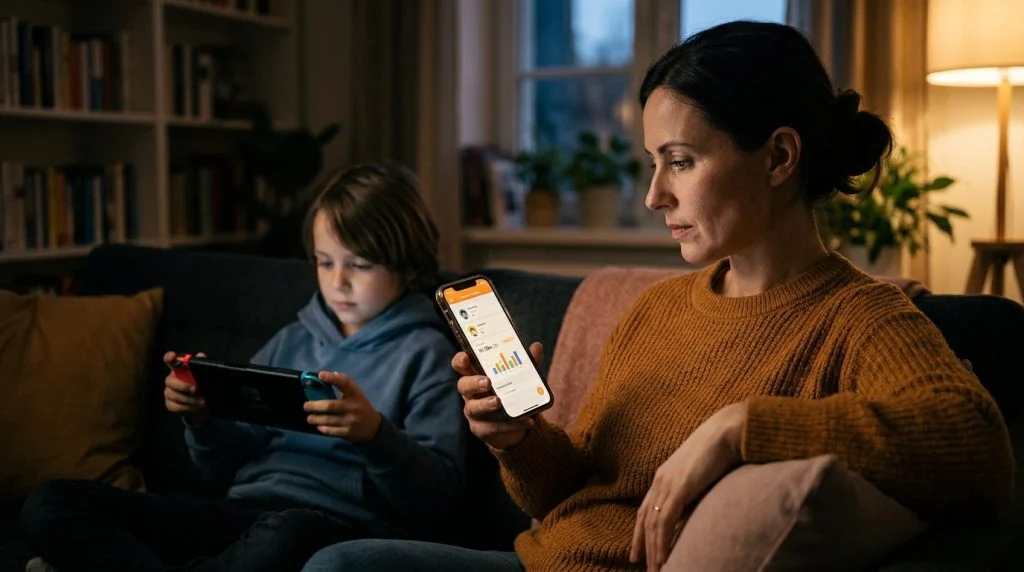
Few sounds bring a household together quite like the upbeat chimes of a handheld console. Handing your child a gaming device represents an exciting milestone, offering immersive worlds, collaborative problem-solving, and creative play. Yet behind the bright colors lies a familiar modern dilemma: managing screen time battles, unexpected credit card charges, and open voice lobbies with total strangers. Setting up Nintendo Switch parental controls provides an effective way to establish healthy boundaries without turning your living room into a digital battlefield.
Part of our complete guide: Phone Monitoring Software: The Complete Guide
Digital safety works best when proactive boundaries replace reactive arguments. Nintendo provides a surprisingly robust safety ecosystem, but its tools are split between on-device menus, web accounts, and a dedicated smartphone companion. Knowing where these tools succeed—and where their blind spots lie—is the key to keeping your child’s gaming experience positive, balanced, and secure.
This guide walks you through every configuration layer across the Nintendo ecosystem. You will learn how to sync your mobile devices, lock down unauthorized spending, curate appropriate game libraries, and understand the limits of console-level oversight in a hyper-connected home.
What Are Nintendo Switch Parental Controls?
Nintendo approaches digital supervision through a tiered architecture. Rather than bundling every rule into a single on-screen toggle, the system divides safety management across two distinct interfaces: the native console settings and the standalone Nintendo Switch Parental Controls mobile application for iOS and Android.
Console Settings vs. The Mobile Application
Out of the box, you can configure basic guardrails directly from the console’s System Settings menu. These native tools are localized and offline. They rely on a master four-digit PIN entered with the physical controllers to bypass restrictions. The on-device system restricts games based on regional age classification boards (such as ESRB or PEGI), prevents the viewing of mature screenshots in the console gallery, and restricts the posting of clips to linked social networks.
However, managing everything on the hardware itself has significant downsides. You cannot view daily activity breakdowns, you cannot set flexible day-of-the-week schedules, and adjusting limits requires interrupting your child’s game to enter a PIN directly on their screen. To build a truly practical routine, you need the official smartphone app.
Pairing the smart device application transforms the management process. The console reports play duration over Wi-Fi directly to your phone, granting you real-time visibility into what titles are running and for how long. It also gives you remote command: you can extend play time as a reward, initiate bedtime suspensions, or see if a session drifted past an agreed curfew without hovering over their shoulder.
How to Configure Nintendo Switch Parental Controls
Configuring your safeguards properly takes less than ten minutes. To ensure the console cannot be altered by clever guesswork, complete this setup before handing the system over to your child.
Step 1: Link the Smart Device App to the Console
The companion app serves as the administrative nerve center. Linking the hardware requires you to establish an initial handshake between your smartphone and the console:
- Download the free Nintendo Switch Parental Controls application from the Apple App Store or Google Play Store on your personal smartphone.
- Launch the app and sign in using your adult Nintendo Account. If you do not have an account, create one using your personal email address—never register it under your child’s credentials.
- The application will display a unique 6-digit registration code on your phone screen.
- Power on the Nintendo Switch and select System Settings (the gear icon) from the home menu.
- Scroll down the left navigation pane and select Parental Controls, followed by Parental Controls Settings.
- Select If You’ve Already Downloaded the App, tap Next, and enter the 6-digit registration code displayed on your phone.
- Select Link. The console will connect to the internet, sync with your smartphone, and generate a dynamic master PIN managed exclusively by your app.
Step 2: Set Daily Play-Time Limits and Bedtime Alarms
Unregulated screen time easily spills into homework hours and sleep schedules. Health organizations like the American Academy of Pediatrics emphasize the need for predictable media curfews to support physical and emotional development. The mobile app makes establishing these boundaries straightforward.
Open the app, navigate to Console Settings in the bottom tray, and select Play-Time Limit. Here you have two options for managing screen allowances:
- Universal Daily Limits: Establish a static limit (e.g., 90 minutes) that applies uniformly every day of the week.
- Set Days Individually: Toggle this switch to customize allowances based on your family’s weekly rhythm—for example, granting 45 minutes on school nights while allowing longer two-hour windows on weekends.
You can also set a Bedtime Alarm. Regardless of remaining play time, reaching the bedtime threshold alerts your child that it is time to wrap up. Under the Bedtime Alarm setting, choose whether the system displays a gentle on-screen pop-up or triggers Suspend Software. Enabling software suspension enforces a hard stop: the console immediately pauses the active game and drops to a locked screen, preventing “just five more minutes” from turning into midnight sessions.
Step 3: Restrict Game Purchases and Age-Inappropriate Titles
Content filtering relies on standard entertainment ratings. Under the Restriction Level menu in the app, you can select pre-configured presets—such as Child, Pre-Teen, or Teen—or select Custom Settings to fine-tune specific vectors.
Restricting software ratings prevents your child from launching physical game cartridges or digital downloads that exceed your assigned age threshold. If an older sibling leaves a mature title in the cartridge slot, a younger child will see a prompt requesting the parent PIN before the game boots.
Crucially, in-game spending protections cannot be configured inside the console settings menu. Nintendo isolates commercial transactions to account management. To prevent unauthorized credit card charges on the Nintendo eShop, follow this browser-based workflow:
- Navigate to accounts.nintendo.com on your phone or computer and sign in with your parent account credentials.
- Select Family Group and verify your child’s profile is listed as a supervised member. If it is not, select Add Member to place their account under your supervisory umbrella.
- Click on the child’s profile name and select Spending / Purchases on Nintendo Switch eShop and official Nintendo website.
- Check the box to disable purchases and automatic passes. Alternatively, you can require the account password for every transaction to eliminate accidental microtransactions.
Key Features of the Switch Parental App
Beyond establishing baseline boundaries, the mobile companion software provides detailed usage analytics that help you stay informed without hovering over your child’s shoulder.
Tracking Daily Gameplay Reports and Monthly Summaries
The home dashboard displays a clear summary of your child’s gaming patterns. The Time Played tab updates throughout the day, showing the exact amount of time spent inside active applications down to the minute. This tracking differentiates between active gameplay and idle time on the home dashboard.
At the end of each month, the application generates a comprehensive visual report detailing which franchises dominated your household’s screen time. This data provides an objective baseline for family discussions. If you notice a sudden jump in play hours, you can address it calmly based on verified trends rather than subjective impressions.
Disabling In-Game Communication and Social Media Sharing
Modern gaming is inherently social, but open networks carry genuine safety considerations. Within the app’s Restriction Level settings, you can toggle two critical safety switches:
- Communicating with Others: This setting disables user-to-user messaging, matchmaking text, and voice communications across all installed titles. Nintendo allows you to toggle this on a global basis or whitelist specific cooperative family games while keeping competitive multiplayer titles locked down.
- Posting Screenshots/Videos to Social Media: Prevents the console from publishing captured gameplay media to linked platforms like Facebook. This ensures your child does not accidentally publish personal identifiers, gamer tags, or location metadata online.
Whitelisting Specific Games for Older Kids
Age ratings provide broad guidance, but they cannot account for individual maturity or nuances within specific games. For instance, an educational title or a beloved family game might carry an older rating due to mild fantasy themes, while remaining entirely appropriate for your child.
Nintendo addresses this through a Whitelisted Applications feature. When your child attempts to launch an age-restricted title that you approve of, enter your master PIN on the console or approve it via the mobile app. Once added to the whitelist, your child can launch that specific title freely without weakening the broader age filters applied to the rest of the console library.
Understanding the Limitations of Console Monitoring
Nintendo Switch parental controls are among the best built-in tools developed by a major console manufacturer. However, parents often operate under the mistaken belief that locking down the console creates a complete safety bubble around their child’s digital life. In practice, standalone gaming protections come with inherent blind spots.
At a Glance: Console Controls vs. Full-Spectrum Monitoring
- On-Console Tools: Superb at scheduling console uptime, enforcing hard bedtime suspensions, and limiting gameplay to age-appropriate software.
- Where Console Tools Fall Short: Incapable of monitoring actual chat conversations, powerless against external matchmaking apps, and easily bypassed using unmanaged second screens.
- Cross-Device Strategy: Combining console-level boundaries with device-level software ensures complete protection across phones, computers, and gaming platforms.
Where Built-In Tools Fall Short
The primary vulnerability of console-level parental software lies in text and voice visibility. While Nintendo lets you turn communication entirely on or off, it offers zero monitoring of active chat logs. The console does not record the contents of text messages sent in game lobbies, nor does it capture what is said over headsets in cross-play multiplayer environments.
Seasoned gamers rarely rely on Nintendo’s rudimentary on-device communication. Players frequently connect with their friends using third-party voice apps—such as Discord or secondary social channels—running alongside the console on smartphones, tablets, or laptops. A child might play a safe, child-friendly title on the television while chatting in an unmoderated, private voice room on an unmonitored smartphone resting in their lap.
Children can also attempt local bypasses. A common tactic involves disconnecting the console from the home Wi-Fi network or attempting system-level time zone shifts. While the mobile app prevents offline clock manipulation once paired, children may turn to factory resets or alternate unmonitored user profiles if the initial administrative setup leaves security loopholes open.
Building a Comprehensive Cross-Device Safety Framework
Modern childhood does not happen on a single platform. A child moves fluidly from building in a sandbox game on a console, to watching video walkthroughs on a desktop browser, to messaging gaming clans on a mobile phone. Protecting that journey requires an integrated approach that pairs platform-level restrictions with broad digital oversight.
When monitoring family devices, transparent guidance always yields better long-term results than covert surveillance. When introducing safety software to minor children, explain the rules clearly: you are not inspecting their day-to-day chatter with school friends, but you are maintaining the visibility needed to shield them from financial scams, grooming risks, and cyberbullying. Consistent safety guidelines, combined with ethical monitoring of family devices in compliance with your local laws, provide a balanced environment where young gamers can build digital independence safely.
For parents looking to safeguard the broader digital ecosystem surrounding console play, specialized monitoring software bridges the gap. Installing a dedicated tool like SPYERA on secondary family hardware gives parents complete visibility over connected devices. With native support across Android smartphones, iPhones, and personal computers, parents can view active keystrokes, monitor chat histories, and identify third-party communication channels that bypass console-level limits.
Over our twenty-five years developing digital monitoring solutions, our team has observed that gaming safety rarely breaks down inside the game itself. More often, risks emerge in the secondary digital channels that surround modern play. Pairing Nintendo’s native play-time restrictions with comprehensive solutions designed to protect your family across all devices ensures your household retains healthy boundaries without compromising on safety.
Summary Checklist: Securing Your Family’s Switch
Before handing the Joy-Cons back to your young gamer, run through this operational checklist to confirm your safety framework is airtight:
- [ ] Pair Mobile App: Synced your personal smartphone with the console to lock down manual system clock shifts.
- [ ] Automate Bedtimes: Configured day-by-day play quotas and enabled the Suspend Software option at bedtime.
- [ ] Enforce Rating Baselines: Set age restrictions to block adult content while utilizing whitelists for approved family exceptions.
- [ ] Lock Down Purchases: Logged into the parent Nintendo Account family portal to require password re-entry on digital checkouts.
- [ ] Audit Secondary Screens: Inspected mobile devices and personal computers used alongside the console to ensure private chats remain safe.
How SPYERA Can Help
SPYERA has helped parents and employers with Nintendo Switch parental controls since 1999. Monitor calls, messages, locations, and app activity on Android, iPhone, Windows, and Mac — used responsibly, with consent, on devices you own or are authorized to monitor.
Frequently Asked Questions
Can my child bypass Nintendo Switch parental controls by changing the time zone?
No, linking the official mobile app disables manual time manipulation on the hardware level. The system synchronizes its clock automatically via Nintendo’s network servers, ensuring play-time limits remain accurate.
Can I see what my child is typing in multiplayer game chats?
No, Nintendo parental controls only allow you to enable or disable in-game communication entirely. The console does not record keystrokes, save chat transcripts, or monitor voice conversations within games.
Does setting restrictions on the console also block purchases on the Nintendo eShop?
On-console controls restrict age ratings, but financial protections require configuration through the parent’s Nintendo Account family group. Setting a spending limit or requiring account passwords for purchases must be handled via a web browser.
What happens if my child plays games offline away from home?
The console continues enforcing daily play-time limits and bedtime alarms using internal hardware clocks. Once the Switch reconnects to Wi-Fi, it uploads all offline gameplay data directly to your smartphone app.