
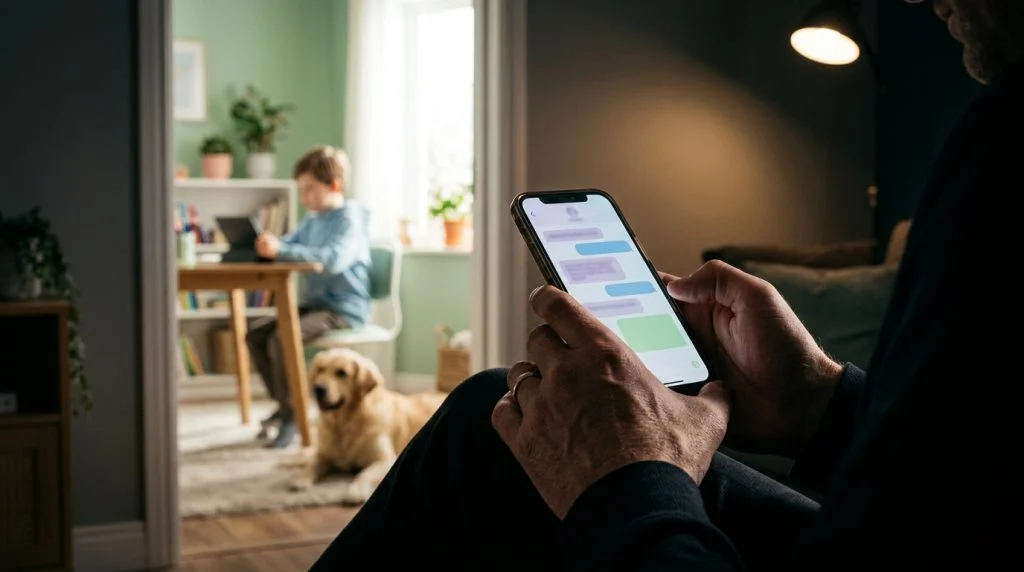
Why Monitoring Text Messages Matters for Modern Parents
Handing a smartphone to your child marks an important developmental milestone. It provides independence, facilitates social coordination, and offers peace of mind when they are away from home. However, that small pocket computer also introduces an entirely unvetted social environment. Knowing how to see child’s text messages is rarely about intruding on harmless banter with classmates; for most parents, it is about maintaining a necessary safety net against risks that children are ill-equipped to handle alone.
Part of our complete guide: Parental Controls for Android: The Complete Guide
Digital environments move fast, and peer dynamics online can quickly escalate into harmful situations. Without active oversight, issues like persistent cyberbullying, exposure to age-inappropriate material, and predatory contact often develop beneath the surface. Authoritative child welfare resources such as StopBullying.gov highlight that ongoing digital harassment frequently occurs away from the public eye via direct messaging channels. A sudden shift in mood, reluctance to attend school, or secretive phone habits often point to interactions happening within standard SMS threads or private chat groups.
The central challenge is balancing safety with preserving trust. Constant, covert snooping can alienate an adolescent, encouraging them to adopt secondary “burner” profiles or conceal their digital lives altogether. Conversely, complete disengagement leaves them unprotected. The most effective approach treats oversight as a collaborative guardrail: establishing clear rules, explaining the reasons behind monitoring, and scaling back intervention as your child demonstrates maturity and sound judgment.
How to See Child’s Text Messages on Android Devices
Android provides considerable flexibility when managing communications, ranging from native operating system features to carrier-level services. Understanding what native options can and cannot accomplish helps you choose the right path for your family’s needs.
Using Google Messages for Web to View Synced Texts
If your child’s Android phone uses Google Messages as its default texting application, the built-in Device Pairing feature provides a straightforward way to see child’s text messages in real time via a web browser.
- Open the browser on your computer or tablet and navigate to the official Google Messages pairing page.
- On your child’s phone, open the Messages app, tap the profile icon in the upper-right corner, and select Device pairing.
- Tap QR code scanner and scan the code displayed on your computer screen.
- Toggle the option to remember the computer so the session remains active across sessions.
This method duplicates the mobile inbox directly onto your desktop screen. You can review incoming and outgoing SMS, check multimedia attachments, and observe message timestamps as they occur.
Limitations of Basic Android Backup and Carrier Monitoring
While native pairing is convenient, it carries significant functional limitations. The phone periodically displays a persistent notification stating that messages are currently being viewed on the web, meaning it is not a background oversight tool. More importantly, if your child deletes a text on the handset, it disappears instantly from the paired web interface. If a conversation took place while the browser session was disconnected, any deleted exchanges are permanently lost.
Cellular carriers also offer family monitoring packages, but these solutions generally provide metadata rather than actual conversational content. Carrier dashboards typically show timestamps, incoming phone numbers, and message counts, but privacy regulations and network architecture prevent them from logging the message text itself or tracking multimedia attachments.
Advanced Supervision with Parental Monitoring Software
Modern adolescent communication has largely migrated away from traditional SMS toward multi-platform ecosystems. A teenager might coordinate homework via standard text, share media through social feeds, and discuss personal matters within encrypted messaging apps. Default operating system controls simply do not bridge these fragmented communication silos.
Why Default Android Controls Miss Crucial Conversations
Standard controls provided by mobile platforms focus primarily on device management—setting bedtime schedules, blocking app store installations, and filtering basic web searches. They intentionally do not index the internal content of individual applications. If a problematic contact interacts with your child via an instant messenger or a direct messaging feature inside a social application, standard device controls offer no visibility.
Comprehensive Oversight Across Channels
This is where specialized parental supervision tools become relevant. Solutions like SPYERA Android monitoring operate at the system level to create a unified log of communication. Rather than relying on live synchronization that vanishes upon deletion, dedicated software logs incoming and outgoing text data the moment it is processed by the operating system.
- Cross-Platform Messaging: Captures traditional cellular SMS alongside encrypted chat applications such as WhatsApp, Telegram, and social media direct messages.
- Keystroke Logging: Employs integrated Android keylogger capabilities to record typed messages, search terms, and notes, even if the text is never sent or is immediately deleted.
- Media and Attachment Logs: Archives received photos, audio clips, and shared media files that might otherwise be cleared from device storage.
- System Stability: Operates quietly in the background without generating intrusive pairing alerts that disrupt normal device functionality.
For more than two decades, our development team has observed how quickly mobile threats change; maintaining dependable oversight requires tools built to accommodate the realities of modern, multi-app smartphone usage.
Step-by-Step Guide to Setting Up SPYERA on Android
Deploying dedicated supervision software requires physical access to the device to configure operating system permissions correctly. Follow these steps to ensure smooth installation and reliable reporting.
Step 1: Preparing the Android Device
Modern Android versions include built-in security scanners that flag non-Play-Store utilities. Before beginning installation, you must configure device settings to permit authorized installation.
- Open Settings on the target phone and navigate to Security & Privacy.
- Locate Google Play Protect, tap the gear icon in the top right, and disable Scan apps with Play Protect temporarily.
- Ensure you have the device’s screen unlock PIN and sufficient battery life before proceeding.
Step 2: Installing and Configuring the Software
Download the installation package directly to the device using the private download link provided in your welcome email.
- Run the installer and grant the necessary Android system permissions, including Accessibility Services, Notification Access, and Usage Data access. These allow the software to monitor communications accurately.
- Enter your activation code when prompted to bind the handset to your account.
- Choose whether to hide the application launcher icon to prevent accidental tampering or uninstallation by young children.
Step 3: Accessing Text Logs from Your Parent Dashboard
Once configuration is complete, the software begins syncing data to your secure web portal. Log in from any computer or mobile browser to review detailed activity. From the dashboard, you can filter messages by date, search for specific contact numbers, set up alert triggers for high-risk keywords, and review conversational context across both standard SMS and third-party chat platforms. Families managing multi-platform households can consult our guide on how to protect your family across devices to ensure consistent safety policies.
Digital Safety Best Practices Beyond Text Monitoring
Technical monitoring is a powerful safeguard, but it works best as one component of a broader parenting strategy. Hardware and software tools notify you when something goes wrong; proactive parenting ensures your child knows how to handle difficulties before they escalate.
Establishing Clear Digital Rules
Before handing over a connected smartphone, outline unambiguous boundaries regarding usage. Guidance from the American Academy of Pediatrics on HealthyChildren.org suggests establishing clear screen time limits and designating tech-free zones, such as dinner tables and bedrooms during sleep hours. Ensure your child understands that device ownership is a privilege paired with responsibility.
Maintaining Open Conversations
Talk regularly about digital experiences without adopting an accusatory tone. Ask about trending apps, online social drama, and peer dynamics just as you would ask about their school day. When children know that bringing an uncomfortable digital interaction to a parent will result in calm problem-solving rather than device confiscation, they are far more likely to seek help when confronted by predatory behavior or severe harassment.
A Note on Lawful and Ethical Use: Supervision tools are designed specifically for parents and legal guardians monitoring minor children in their care, or for employers managing company-owned devices with explicit written consent. Deploying monitoring software on an adult’s device without their knowledge and legal authorization violates privacy laws and user terms.
How SPYERA Can Help
SPYERA has helped parents and employers with see child's text messages since 1999. Monitor calls, messages, locations, and app activity on Android, iPhone, Windows, and Mac — used responsibly, with consent, on devices you own or are authorized to monitor.
Frequently Asked Questions
Can I see my child’s text messages on Android without them knowing?
While technical solutions allow discreet background monitoring on Android devices you own and manage, digital safety experts strongly encourage open communication. Informing your child establishes trust and teaches responsible digital citizenship while maintaining necessary oversight.
Does Google Family Link let you read text messages?
Google Family Link allows parents to manage screen time, set app restrictions, and track location, but it does not display the actual content of SMS or chat conversations. For direct message inspection, parents must use message syncing or dedicated parental monitoring software.
Can I recover deleted text messages on an Android phone?
Standard Android backups rarely restore individual deleted texts after the fact without a full device reset. However, comprehensive monitoring software logs text interactions in real time, capturing incoming and outgoing messages before they can be permanently cleared.
Is it legal to monitor my child’s phone remotely?
In most jurisdictions, parents and legal guardians have the legal right to monitor the digital communications of minor children on devices the parents own. Employers may also monitor company-owned devices with proper employee notification and consent, but monitoring any adult without consent is strictly prohibited.