
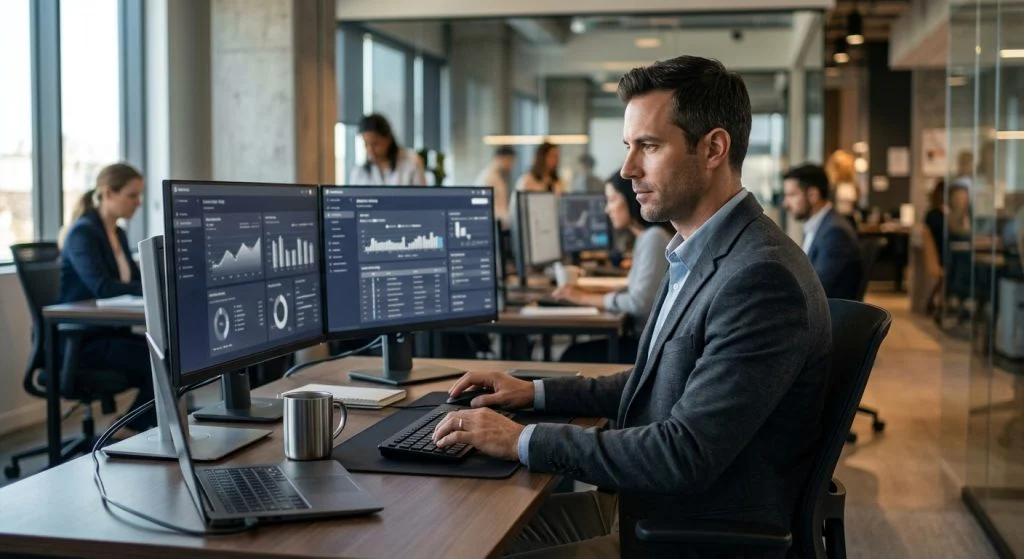
Managing a team across offices, time zones, and home desks comes with an unavoidable tension. You want to give your staff the autonomy they need to do their best work, yet you hold ultimate accountability for company data security, client confidentiality, and baseline productivity. When an organization suffers a data leak or experiences prolonged operational bottlenecks, leadership shoulders the blame. Learning how to monitor employee computer activity effectively is rarely about catching someone slacking off on social media; it is about building a secure, predictable, and resilient operational environment.
Part of our complete guide: Employee Monitoring: The Complete Guide for Employers
Workplace oversight has shifted dramatically over the past two decades. The days of simply walking past cubicles to see who was at their desk are gone. Today, company assets live on encrypted solid-state drives, distributed cloud networks, and remote laptops connecting through residential internet connections. Without structured oversight, leadership remains blind to insider risks, accidental data exposures, and workflow friction that drains organizational momentum.
The challenge lies in execution. Heavy-handed surveillance breeds resentment and drives away top performers, while an absence of oversight exposes the enterprise to devastating compliance and security failures. Achieving balance requires the right legal grounding, reliable administrative tools, and an organizational culture built on clear expectations rather than suspicion.
Legal and Ethical Considerations Before You Begin
Before deploying any system software across your hardware fleet, you must establish an unimpeachable legal and ethical foundation. Monitoring technology is powerful, and utilizing it irresponsibly can expose your organization to statutory penalties, civil litigation, and severe reputational damage. As an employer, your authority to supervise digital activity stems from device ownership and your obligation to safeguard organizational assets, but this authority is not limitless.
Understanding Local Workplace Privacy Laws and Consent Requirements
Workplace privacy jurisprudence varies substantially across global and regional jurisdictions. In the United States, the Electronic Communications Privacy Act (ECPA) generally permits employers to monitor communications on equipment they provide, especially when supported by a valid business rationale. However, state-level regulations often impose stricter conditions. For instance, both New York and Delaware require employers to provide specific, written notice to new hires and obtain signed acknowledgment before any electronic monitoring begins.
If you operate within or handle data belonging to residents of the European Union, the General Data Protection Regulation (GDPR) sets an even higher benchmark. Under GDPR, passive employee consent is rarely considered valid due to the inherent power imbalance between employer and worker. Organizations must demonstrate a legitimate business interest, conduct a Data Protection Impact Assessment (DPIA), and ensure that all data collected is strictly proportional to the security risks being mitigated. To stay compliant with data safety standards, review official security frameworks such as the Federal Trade Commission Guidance on Privacy and Security before implementing new monitoring tools.
Establishing Clear Corporate Acceptable Use Policies
Ambiguity is the root cause of workplace conflict regarding monitoring. If an employee believes their workplace laptop is a private sanctuary, discovering that their activity is logged will immediately feel like an invasive breach of trust. A comprehensive Acceptable Use Policy (AUP) removes ambiguity by setting objective boundaries before an employee ever powers on their machine.
A defensible and fair Acceptable Use Policy should include several non-negotiable components:
- Asset Ownership Declaration: Explicitly state that all workstations, peripheral storage devices, corporate email accounts, and internal communications networks are the exclusive property of the company.
- No Expectation of Privacy: Clearly inform employees that they should have no expectation of personal privacy when utilizing company hardware, whether working from the main office or a home environment.
- Scope of Data Logging: Clearly specify the data points captured, including application focus time, URLs visited, keystrokes, remote system screenshots, and file transmission records.
- Permitted Personal Use: Define in plain language whether incidental personal use (such as checking a bank balance or personal email during a scheduled lunch break) is permitted, restricted, or strictly forbidden.
- Consequences of Violation: Detail the progressive disciplinary measures that result from policy breaches, ranging from verbal counseling to immediate termination and legal recourse.
Require every team member to read, sign, and date this policy during their initial onboarding process, and re-issue the documentation annually for re-acknowledgment whenever updates occur.
How to Monitor Employee Computer Activity with SPYERA
Establishing policy documents is only the administrative half of the equation; organizations also need reliable software to collect factual telemetry across varied operating systems. SPYERA has engineered comprehensive system oversight tools since 1999, giving business operators deep visibility into company assets while maintaining stability across fluctuating enterprise IT environments.
Step-by-Step Setup on Windows and macOS Workstations
Deploying oversight software onto business machines requires administrative privileges and physical or remote desktop access to the target hardware. Because enterprise-grade monitoring operates at a deep system level, operating systems require explicit permissions to ensure the software functions unimpeded.
When provisioning a macOS system with SPYERA Mac monitoring software, modern versions of macOS enforce strict sandboxing. You will need to guide the machine through macOS System Settings:
- Log in to the machine using an account with local administrative credentials.
- Install the client software package following your SPYERA account dashboard instructions.
- Navigate to System Settings → Privacy & Security.
- Under Accessibility, grant permission to the background client daemon. This allows the system to register keystrokes and application switching events.
- Under Full Disk Access, toggle access on for the client daemon to ensure system log files and local document pathways are readable.
- Under Screen Recording, approve access so the software can capture periodic visual screenshots. Detailed steps on these platform-level controls are maintained directly within official Apple Screen Recording Permission Documentation.
For Windows-based workstations utilizing SPYERA Windows monitoring software, the deployment workflow focuses on security exceptions. Run the installer as an administrator, enter your software activation key, and configure your local endpoint defense or Windows Defender to exclude the installation directory from routine heuristic quarantine sweeps. Once activated, the software initializes silently as a system service, operating invisibly without generating desktop icons, pop-up notifications, or system tray clutter.
Tracking Real-Time Keystrokes, Active Applications, and Web History
Once deployed, the monitoring client records core operational metrics and synchronizes the collected data to your central web control panel. The objective here is capturing a complete, chronological timeline of an employee’s workday.
Using an integrated Windows keylogger or its macOS equivalent provides deep visibility into textual inputs across every local program. Unlike simple browser extensions that only track web browsing, a native system-level logger records keystrokes entered into standalone desktop software, terminal prompts, internal accounting databases, and enterprise messaging suites. Every text string is stamped with a precise time, user account ID, and the specific application in which the typing occurred.
Web history logging operates similarly, recording exact URLs, page titles, and visit timestamps even if an employee attempts to browse within private or incognito windows. This allows management to verify whether teams are utilizing authorized online documentation, wasting billable hours on non-work platforms, or accessing unapproved third-party web services.
Capturing Remote Screenshots and Managing Background Data Transfers
Text logs provide crucial context, but visual verification eliminates ambiguity. SPYERA allows administrators to configure automated screenshot intervals based on specific triggers or continuous timers. For instance, you can instruct the software to capture the screen whenever a designated high-risk program opens—such as an FTP client, code repository, or financial management application.
Transmitting these screenshots alongside extensive system logs requires thoughtful resource management. SPYERA uses adaptive, encrypted transport protocols that compress diagnostic logs locally before uploading them to the web portal. If an employee is on an unstable remote connection or offline during travel, the client holds the logs in an encrypted local cache. The moment an internet connection is re-established, the data uploads smoothly in small batches, ensuring system network bandwidth is never saturated and device performance never stutters.
Key Metrics to Track for Productivity and Security
Having access to comprehensive computer monitoring data can quickly become overwhelming if you do not know which operational indicators warrant attention. The goal is not to pore over millions of keystrokes every afternoon; it is to establish baseline behavioral patterns and configure alerts for anomalies that indicate either severe operational friction or genuine security risks.
| Telemetry Category | Primary Metric Tracked | Operational Value | Risk Mitigated |
|---|---|---|---|
| Input Dynamics | Keystroke volume and continuous typing intervals | Identifies workload distribution and active documentation effort | Detects sudden shifts in employee engagement or unauthorized terminal access |
| Application Focus | Foreground process time vs. background runtime | Validates tool utilization rates and software license ROI | Uncovers unsanctioned shadow IT services and excessive personal distraction |
| File Operations | File creation, modification, deletion, and exports | Tracks project completion velocity and document lifecycle | Guards against mass intellectual property extraction and unauthorized backups |
| Peripheral Activity | Removable media connection and external prints | Enforces hardware compliance policies | Mitigates internal theft and data smuggling via USB storage |
Identifying Insider Threat Indicators and Sensitive File Transfers
Most enterprise security architectures focus heavily on keeping external hackers out, but malicious or negligent insiders can bypass network firewalls with ease. Protecting organizational intellectual property against illicit copying requires monitoring file-level events. When an employee prepares to leave a company, a common impulse is to copy work portfolios, client lists, or code repositories to take to their next role. This behavior is a direct threat to corporate solvency and a frequent vehicle for corporate espionage.
Monitoring software allows administrators to detect anomalous file behavior before sensitive materials leave corporate hands. Key warning signs to watch for include:
- Bulk compression of business directories into password-protected .ZIP or .TAR files.
- Mounting unauthorized USB flash drives or external hard drives during atypical business hours.
- Large file transfers initiated to personal cloud storage domains like Google Drive, Dropbox, or personal webmail accounts.
- Repeated, sudden copying of extensive data sets to the OS system clipboard.
Setting your monitoring platform to alert on these specific triggers provides early intervention capabilities, turning what would have been a catastrophic data breach into a managed human resources conversation.
Measuring Idle vs. Productive Time Across Remote and Hybrid Teams
Supervising remote employees introduces the complex challenge of evaluating productivity fairly. A common mistake made by inexperienced managers is equating high keyboard activity directly with high-value output. This simplistic view often incentivizes the wrong behaviors; employees may resort to using physical mouse jigglers or running infinite macro loops simply to keep their status icons green.
Effective activity auditing analyzes the ratio of active input to idle time in the context of an employee’s actual job duties. An engineer writing complex software or an executive reviewing a legal brief may spend twenty continuous minutes reading a technical specification without pressing a key or moving their mouse. Flagging this period as unproductive idle time is a failure of management insight.
To accurately gauge engagement, evaluate activity velocity across entire work cycles:
- Application Context: Is idle time occurring within an enterprise document, a video conferencing platform, or a completely unmonitored desktop state?
- Work Patterns: Does an individual exhibit sudden bursts of rapid activity followed by hours of inactivity, suggesting disjointed attention or task-switching overload?
- Project Output Correlation: Do the recorded active software hours align with completed tickets, merged code, or resolved customer inquiries in your primary project management software?
When used thoughtfully, computer monitoring data allows management to spot structural inefficiencies, identify workers who are burning out under unsustainable workloads, and support individuals who are struggling with digital distractions.
Best Practices for Transparent Workplace Monitoring
The technical deployment of monitoring software is simple; the human element is what demands executive finesse. If monitoring is treated like an adversarial game of cat and mouse, employees will inevitably spend their creative energy finding clever ways to bypass oversight instead of focusing on their core responsibilities. True operational security is built on organizational transparency.
Communicating Surveillance Policies to Build Employee Trust
The most successful monitoring implementations begin with a direct, candid conversation. Inform your team precisely what tools are installed on their machines, what data points those tools capture, and the specific business motivations behind the deployment. Emphasize that monitoring serves as a mutual safeguard: it defends the company from malicious actors, but it also creates an objective, immutable record of an employee’s hard work, dedication, and policy adherence.
Frame the implementation around asset hygiene and collective defense. Explain that client trust requires verifiable data handling standards, and that comprehensive endpoint monitoring is a core compliance requirement for securing enterprise contracts. When workers understand that endpoint visibility protects the organization’s financial stability—and by extension, their own livelihood—they are far more likely to accept oversight as a normal, professional standard.
Using Monitoring Insights for Constructive Coaching Rather Than Micromanagement
The data harvested by monitoring software should inform business coaching, not punitive micromanagement. If an administrator notices that a team member is spending two hours every morning navigating between unproductive websites, firing them on the spot or berating them over an internal chat channel is rarely the optimal response. A mature leader looks deeper into the root cause.
Consider the broader context of an employee’s workflow before taking action:
- Evaluate Training Gaps: Does the worker spend an excessive amount of time searching for basic documentation or switching between disparate tools? This pattern often indicates inadequate onboarding or fragmented internal communication rather than laziness.
- Examine Workload Allocation: Is an individual disengaging because their assigned tasks are too ambiguous, or conversely, because they completed their daily objectives early and have not been provided a clear path forward?
- Address Distraction Constructively: In a regular one-on-one meeting, discuss operational velocity neutrally. Reference missed milestones or workflow delays without brandishing monitoring screenshots like a weapon. Let the factual data guide the conversation toward solutions: reprioritizing tasks, streamlining toolchains, or reassigning responsibilities.
When you monitor employee computer activity through a lens of mentorship and risk mitigation rather than discipline, the software stops being a source of workplace anxiety. Instead, it becomes an objective operational diagnostic tool—protecting enterprise data integrity while helping distributed teams maintain the focus and clarity needed to succeed.
How SPYERA Can Help
SPYERA has helped parents and employers with monitor employee computer activity since 1999. Monitor calls, messages, locations, and app activity on Android, iPhone, Windows, and Mac — used responsibly, with consent, on devices you own or are authorized to monitor.
Frequently Asked Questions
Is it legal to monitor employee computer activity without their knowledge?
In many jurisdictions, employers have the legal right to monitor company-owned computers without real-time notice, provided there is a valid business purpose. However, modern privacy statutes in several regions—including specific US states like New York and Delaware, as well as the EU under GDPR—mandate prior written disclosure and consent. Establishing a transparent acceptable use policy is always the safest legal and cultural approach.
Can employee computer monitoring software track activity on remote home Wi-Fi networks?
Yes, monitoring software installed directly on an operating system tracks the workstation itself rather than the local router. Whether the machine connects through a remote home Wi-Fi connection, a cellular hotspot, or an office LAN, software like SPYERA captures on-device interactions, file modifications, and application usage, then transmits encrypted logs whenever an internet connection is active.
What is the difference between active time and idle time in employee monitoring?
Active time measures periods when an employee is directly engaging with an open application through keyboard input, trackpad gestures, or mouse clicks. Idle time occurs when an application remains open in the foreground but no physical input is registered for a set threshold, indicating that the user is reading, on a phone call, or away from the workstation.
Does running desktop monitoring software slow down computer performance?
Engineered monitoring solutions run quietly as low-overhead background services that consume minimal CPU cycles and RAM. Background tasks like local activity logging and periodic data synchronization are scheduled to prevent thermal throttling or input lag, ensuring employee workflows remain completely uninterrupted.
What core elements must appear in an Employee Computer Monitoring Policy?
A robust policy must define which devices are subject to oversight, specify monitored channels such as web browsing and keystrokes, clarify that employees have no expectation of privacy on corporate assets, and outline the business purpose behind data collection. It should also specify how captured logs are stored, audited, and reviewed by leadership.