
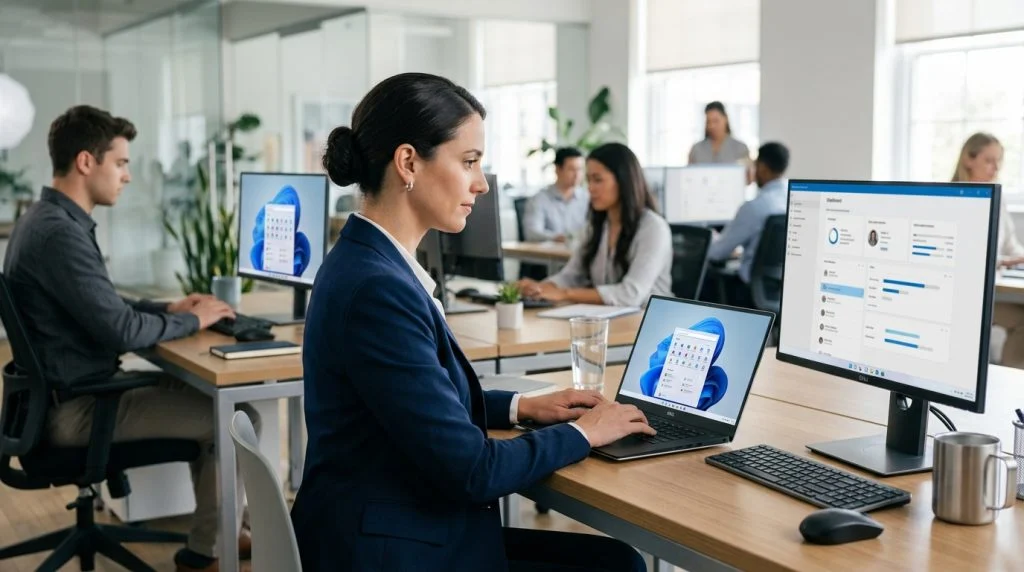
Managing a modern workforce across remote, hybrid, and in-office environments presents a unique operational challenge. When your staff operates across different locations on company-issued hardware, simple questions about workflow consistency and data security become complex. Implementing employee monitoring for windows does not mean turning leadership into an adversarial surveillance regime. Done thoughtfully, it serves as an indispensable administrative safeguard that protects company assets, validates project timelines, and maintains accountability across your entire organization.
Part of our complete guide: Employee Monitoring: The Complete Guide for Employers
Windows remains the primary operating system powering enterprise workflows worldwide. From finance spreadsheets and client databases to proprietary codebases, critical company data lives on desktop and laptop endpoints. Yet, unsupervised workstations can easily become points of failure through careless data handling, time drift, or deliberate internal threats. Finding a steady middle ground between proactive system security and genuine team trust requires a clear understanding of the technology, the law, and your company’s core values.
In this guide, we walk through the practical implementation of Windows oversight tools. You will learn how modern endpoint tracking operates, which technical capabilities actually matter for your threat model, the legal obligations you must honor before installation, and how centralized systems simplify device administration.
Why Modern Businesses Need Windows Workplace Oversight
The traditional perimeter-based security model—where physical firewall appliances in an office building protected every terminal—has largely vanished. Modern employees work from home offices, coffee shops, and shared spaces. While flexibility improves retention and work-life balance, it removes the physical boundary between corporate duties and personal computing.
The Shift to Hybrid Work and Growing Insider Cybersecurity Threats
Insider risks represent one of the most persistent and costly vulnerabilities facing small to mid-sized businesses. According to organizational security resources hosted by StaySafeOnline, maintaining cyber hygiene requires continuous visibility into how internal systems interact with external networks. An insider threat rarely starts with a malicious employee plotting corporate sabotage. Far more often, it begins with an overworked staff member downloading an unapproved third-party utility, copying sensitive financial spreadsheets onto an unencrypted thumb drive to finish work over the weekend, or falling victim to a targeted phishing attempt.
Windows workstations are naturally exposed to these errors because users interact daily with email clients, web browsers, and administrative filesystems. When unauthorized programs or risky habits take root on company endpoints, IT teams need immediate visibility. Monitoring tools establish an audit trail that detects anomalies before a routine oversight turns into a catastrophic data breach.
Balancing Productivity Tracking with Employee Privacy and Trust
A common pitfall for management teams is conflating activity tracking with automated micromanagement. Counting mouse clicks or penalizing an employee for taking a brief stretch away from the keyboard creates an environment of anxiety. When staff members believe their employer values artificial keystroke metrics over substantive project delivery, morale plummets and turnover spikes.
Responsible workplace oversight focuses on macroscopic trends, operational bottlenecks, and defensive security. Is an entire department struggling with an inefficient software tool? Are employees routinely accessing sensitive customer records outside of standard business hours? Are unauthorized cloud storage repositories being used to bypass formal backup protocols? Viewing monitoring as an operational diagnostic tool rather than an electronic whip preserves the mutual respect necessary for high-performing teams.
Key Features in Employee Monitoring for Windows Systems
Not every monitoring platform is built the same way. Basic time-trackers merely record whether a browser window is active, while enterprise-grade oversight solutions capture multi-layered diagnostic data. If you are evaluating a solution to oversee Windows endpoints, several non-negotiable capabilities must be present.
Real-Time Keystroke Logging and Application Usage Tracking
Application tracking details the exact lifecycle of running programs on a target PC. It records when software begins executing, how long the window remains in active focus, and when the user minimizes or closes it. This allows administrative leaders to distinguish between productive software utilization—such as hours spent inside ERP systems, CAD software, or code editors—and passive distraction from non-work applications.
Pairing application diagnostics with a dedicated Windows keylogger provides granular context that standard analytics miss. Rather than simply noting that an email client was opened, keystroke recording captures the content of outgoing communications, search queries within internal databases, and commands entered into terminal prompts. This level of audit logging proves critical during investigations involving customer data theft, harassment claims, or regulatory audits.
Automated Screenshot Capture and File Transfer Monitoring
Text logs tell you what was typed, but visual captures show you what the user saw. Automated screen capture can be configured to snap visual snapshots at predetermined time intervals (such as every five minutes) or dynamically trigger based on specific events. For instance, you can configure your endpoint agent to take a high-resolution screenshot whenever an employee opens a sensitive accounting program, accesses browser incognito mode, or types a restricted keyword.
Alongside visual proof, robust file transfer monitoring establishes an unbroken chain of custody for intellectual property. The system logs:
- The exact file name, extension, and system directory path.
- Whether the file was moved, renamed, uploaded to a cloud server, or deleted.
- The destination application or web browser used during the transfer.
- Precise time and date stamps matching the active Windows user account.
Web Filtering and Detection of Unauthorized External Drives
Removable media continues to pose a massive threat to corporate networks. Unchecked USB flash drives introduce two hazards: they provide an easy vector for employees to walk away with valuable databases, and they can harbor malware that executes as soon as the drive mounts. Effective oversight software recognizes hardware connection events instantly, recording the serial number of the external device and documenting every file transferred across the USB bus. This audit capability actively defends against systematic corporate espionage and illicit data exfiltration.
Simultaneously, web monitoring tracks all visited URLs, categorizes site types, and lets administrators block hazardous web destinations, such as peer-to-peer networks, malicious domains, and personal webmail services that bypass corporate archiving.
Endpoint Feature Assessment Matrix
To help you prioritize which capabilities match your operational risk profile, use the following operational assessment table:
| Capability | Primary Objective | Data Gathered | Business Impact |
|---|---|---|---|
| Keystroke Telemetry | Audit trails & incident forensics | Typed characters, form inputs, messages | Identifies unauthorized data entry and communication breaches |
| Visual Screen Recording | Contextual verification | Periodic or trigger-based screenshots | Provides concrete visual evidence of unauthorized access |
| USB Port Monitoring | Data loss prevention (DLP) | Device IDs, files copied to removable storage | Stops intellectual property exfiltration at the hardware layer |
| App & Web Logging | Productivity & resource audits | Active window durations, full URL paths | Reveals workflow bottlenecks and non-work resource usage |
Legal and Ethical Best Practices Before Deploying Software
Technical deployment is the simple part of the equation; navigating the legal and cultural landscape requires careful preparation. Installing employee monitoring for windows across corporate terminals without addressing statutory guidelines can expose your business to severe financial liabilities and damage internal culture.
Drafting Clear Acceptable Use and Workplace Surveillance Policies
Ambiguity is the enemy of fair administration. Every organization must draft, maintain, and regularly review a comprehensive Acceptable Use Policy (AUP). This document should be signed by every team member upon hiring and re-acknowledged annually. The Federal Trade Commission offers helpful business resources on protecting confidential records and respecting user trust via their FTC Business Guidance portal, highlighting the importance of clear governance.
Your policy document should clearly outline the following terms:
- Ownership of Hardware: Explicitly state that all issued PCs, laptops, and peripheral hardware remain the exclusive property of the company.
- Absence of Privacy Expectation: Clarify that staff members should have no expectation of personal privacy when using corporate equipment, networks, and licensed applications.
- Monitored Parameters: Detail precisely what data is tracked, such as keystrokes, application usage, visited websites, file transfers, and automated screen captures.
- Permitted Personal Use: Define whether brief personal tasks (such as checking online banking during lunch breaks) are tolerated, or whether the device is strictly restricted to professional duties.
Compliance with Regional Privacy Laws Like GDPR and Local Labor Codes
Legal boundaries vary significantly based on your geographical footprint. If your business operates within or employs citizens of the European Union, the General Data Protection Regulation (GDPR) mandates strict data protection principles. Monitoring cannot be carried out arbitrarily; you must demonstrate a lawful basis—typically a balanced “legitimate interest” assessment—and adhere rigorously to the principle of data minimization.
In many jurisdictions, capturing personal credentials, financial logins, or medical information entered during an employee’s authorized break can violate statutory labor codes. Implementing monitoring ethically involves capturing only the data necessary to protect your enterprise, restricting administrative dashboard access to authorized HR and security personnel, and securely discarding logs once their compliance or auditing purpose expires.
Pre-Deployment Implementation Checklist
Before installing your chosen software across workstation images, run through this practical readiness checklist:
- Policy Finalization: Have your legal counsel and HR leadership reviewed your Acceptable Use Policy against local labor statutes?
- Written Consent: Have all team members provided verifiable, signed acknowledgment of your workplace monitoring guidelines?
- Endpoint Scope Audit: Have you ensured that the software will be deployed only to company-owned assets, leaving personal Bring-Your-Own-Device (BYOD) hardware untouched?
- Role-Based Access Controls: Is access to the monitoring console restricted strictly to designated executives, system administrators, or compliance officers?
- Data Retention Schedule: Have you configured an automated retention schedule to purge historical telemetry after 30, 60, or 90 days?
How SPYERA Delivers Stealth and Security on Windows PCs
When selecting software to safeguard Windows desktops and laptops, technical stability and architectural discretion are crucial. Enterprise endpoints run complex security stacks, including local firewalls, virtualized sandboxes, and enterprise endpoint detection and response (EDR) software. Monitoring agents must operate smoothly without triggering system instability or consuming excessive hardware resources.
Building on over twenty-five years of engineering expertise in the specialized device telemetry space, SPYERA for Windows offers an advanced monitoring platform designed specifically for corporate oversight. It captures essential activity streams while maintaining stability across all modern versions of Windows 10 and Windows 11.
Invisible Background Tracking Without Affecting System Performance
A persistent flaw with lower-tier monitoring tools is their tendency to slow down system responsiveness. Bulky desktop clients often cause fan spin-ups, memory leaks, and noticeable input delays during typing. When an employee notices these interruptions, they become frustrated and their productivity suffers.
The SPYERA client runs quietly as an optimized background service. It utilizes negligible CPU cycles and manages cached telemetry efficiently, transmitting encrypted activity logs to the cloud server during periods of low network utilization. It hides from standard desktop taskbars and the Windows start menu, preventing accidental termination or deliberate uninstallation attempts by unauthorized local users.
Centralized Web Dashboard for Instant Administrative Reporting
Managing twenty or two hundred remote Windows workstations shouldn’t require manual endpoint inspections. The software synchronizes all collected telemetry into a protected, centralized web dashboard. From this unified interface, systems managers can review comprehensive activity timelines across the entire organization.
Key operational capabilities accessible directly from the management console include:
- Visual Inspection: Reviewing chronologically organized screen captures to visually confirm questionable user actions.
- Keystroke Search: Searching raw keyboard logs for sensitive intellectual property strings, client social security numbers, or unauthorized trade secrets.
- Activity Summaries: Generating clean PDF and CSV reports showing active versus idle ratios across departments for executive review.
- Peripheral & Network Audits: Reviewing real-time device attachment alerts whenever external USB flash drives are introduced to an endpoint.
For organizations maintaining mixed device fleets alongside their Windows workstations, SPYERA also supports cross-platform monitoring across Mac OS desktop environments as well as enterprise mobile devices. This provides comprehensive visibility through a single, consistent management dashboard.
Conclusion: Building a Transparent, Secure Windows Environment
Implementing employee monitoring for windows is ultimately an exercise in clarity. It is not an adversarial weapon designed to catch employees stepping away from their desks, but an essential engineering control that safeguards corporate assets, prevents costly data leaks, and provides objective clarity during operational audits.
By pairing transparent workplace policies and sound ethical practices with robust, enterprise-grade tools like SPYERA, businesses can build a resilient working environment. Your organization gains the real-time security telemetry it requires, while your workforce retains the autonomy, respect, and trust necessary to produce their best work.
How SPYERA Can Help
SPYERA has helped parents and employers with employee monitoring for windows since 1999. Monitor calls, messages, locations, and app activity on Android, iPhone, Windows, and Mac — used responsibly, with consent, on devices you own or are authorized to monitor.
Frequently Asked Questions
Is employee monitoring for Windows legal without notifying staff?
In most jurisdictions, businesses may monitor company-owned devices used for business purposes, but transparency is legally advisable and often strictly mandated. Under regulations like the GDPR, explicit notification and a lawful basis such as legitimate interest or contractual necessity are required before gathering employee telemetry.
Will Windows monitoring software slow down corporate laptops?
Poorly engineered software can cause high CPU utilization and memory spikes, especially when logging keystrokes or processing screen captures. High-grade desktop clients operate silently at the kernel or background-service level, typically consuming less than 1% of CPU resources and negligible system memory.
Can employee monitoring software track USB drive file transfers?
Yes. Comprehensive Windows monitoring suites track peripheral port connections, log whenever files are copied to or from external storage devices, and capture the associated file names, paths, and timestamps to protect against data exfiltration.
What is the difference between active time and idle time tracking?
Active time measures real interaction with system peripherals, such as typing, clicking, and window focus changes. Idle time begins when no mouse movement or keyboard input is detected for a predetermined threshold, helping managers distinguish between active productivity and passive open windows.