
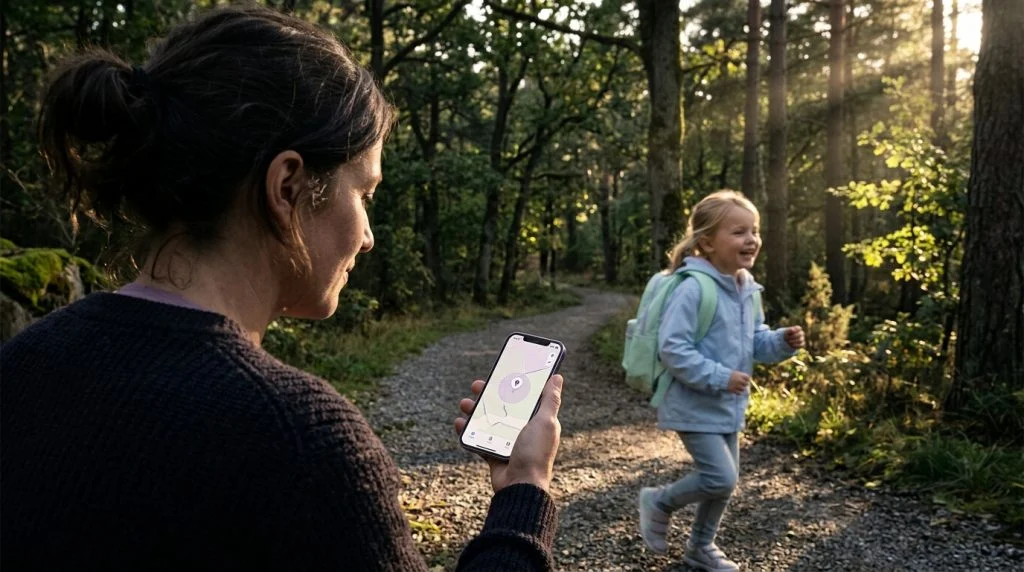
Understanding Child Location Tracking on Modern iOS Devices
Handing your child their first iPhone is a major milestone. It gives them a direct line home, helps them coordinate after-school schedules, and grants them independence. At the same time, it introduces genuine parental worry about where they are when the afternoon bell rings or practice runs late. Knowing how to monitor your child location on iphone provides peace of mind without having to send anxious text messages every thirty minutes.
Part of our complete guide: Parental Controls for iPhone & iPad: The Complete Guide
Apple includes robust native tools designed to keep families connected. When properly configured, these tools allow you to check in quietly while your child navigates their day. Yet, native features also come with distinct behavioral and technical limitations that catch many parents off guard. An older child can silence alerts, turn off location sharing with a couple of taps, or toggle network settings to drop off the map entirely.
Whether you want a simple way to verify that your child reached the library or you need persistent oversight for a vulnerable younger teen, you have clear technical paths forward. Below, we examine the native iOS ecosystem, how to harden it against tampering, where its limits lie, and how professional safety tools offer deeper visibility when standard tools fall short.
Native Methods to Check Location on Apple Devices
Apple makes location sharing relatively simple through its integrated software ecosystem. Rather than requiring third-party downloads right away, iOS relies on two foundational services: Family Sharing and Find My. Used together, they create a reliable baseline for location awareness.
Setting up Family Sharing and Location Broadcasting
Family Sharing acts as the administrative umbrella for Apple accounts in your household. It lets you manage purchases, enforce parental controls, and establish automated location broadcasting across your family group. To make sure your child’s device shares its position with yours, you must configure the family group correctly from an adult device.
- Open Settings on your personal iPhone and tap your name at the top.
- Select Family Sharing. If you have not created a group yet, tap Set Up Your Family and follow the on-screen instructions to invite your child’s Apple ID.
- Within the Family Sharing menu, scroll down and tap Location Sharing.
- Toggle on Share Your Location Automatically.
- Under the list of family members, tap your child’s name and verify that their device is actively sharing its coordinates with your Apple ID.
Once established through Family Sharing, your child’s primary device will continuously broadcast its coordinates across Apple’s secure location network, provided it has an active internet connection and battery life remaining.
Using the Apple Find My App for Real-Time Tracking
The operational hub for tracking family members is the native Find My app. It brings together device recovery and personal location sharing into one interface. If you need step-by-step assistance with Apple accounts, the official Apple Find My support guide outlines device requirements across hardware generations.
To view your child’s location in Find My:
- Open the Find My app on your iPhone or iPad.
- Tap the People tab along the bottom menu bar.
- Select your child’s name from the list. The map will center on their current position, showing their approximate street address and when the coordinate was last updated.
- Swipe up on the card to reveal additional options, such as getting walking or driving directions directly to their spot.
Within this view, Apple allows you to configure basic notifications. You can tap Add under Notifications to request an alert when your child leaves school or arrives home. These geofence alerts rely on background network updates and can help automate routine check-ins during the week.
Limitations of Built-In iOS Location Sharing
While native tools work well for cooperative situations, they were primarily designed around mutual privacy rather than supervisory oversight. As children enter their teenage years, technical curiosity often leads them to explore ways to bypass these boundaries. Parents quickly encounter structural hurdles built into standard iOS software.
How Easily Kids Can Disable Location Services or Toggle Airplane Mode
Apple gives device users direct control over their own privacy. Without strict restrictions in place, your child can easily alter how their phone reports its position:
- The Control Center Shortcut: Swiping down from the top-right corner opens Control Center. A single tap on the Airplane Mode icon cuts all cellular and Wi-Fi connections instantly, freezing the location on your screen at the last reported spot.
- Individual Setting Toggles: Inside Settings > Privacy & Security > Location Services, your child can switch off system-wide location reporting or restrict location permissions specifically for the Find My app.
- Stopping Share Location: In Settings > [Child’s Name] > Find My, toggling off Share My Location immediately disconnects the broadcast to your device.
To close these loopholes, you must enforce administrative locks through iOS Screen Time. Open Settings > Screen Time, set a dedicated Screen Time Passcode that your child does not know, navigate to Content & Privacy Restrictions, scroll to Location Services, and select Don’t Allow Changes. While this stops accidental or intentional toggling within the settings menu, it cannot prevent a teenager from simply enabling Airplane Mode or powering the phone off entirely.
Lack of Historical Route Tracking and Advanced Geofencing Options
Apple’s native architecture emphasizes point-in-time tracking over historical oversight. For many families, this is not enough to answer critical safety questions:
- No Route History: Find My tells you where a phone is right now (or where it was when it last connected). It does not provide historical breadcrumbs. If your teenager drives across town, you cannot see the route taken, stops made along the way, or how long they stayed at an unapproved address.
- Limited Geofence Triggers: While native notifications alert you upon arrival or departure, they can suffer from delivery delays depending on network handoffs. They do not retain a historical log of entries and exits for later review.
- Notification Transparency: When you set a recurring notification in Find My to alert you when your child leaves a location, iOS occasionally alerts the child that an alert has been created, which can trigger conflict if you are trying to manage supervision quietly.
Comparing Native iOS Tracking and Advanced Safety Software
Understanding what each tool offers helps you select the right balance of privacy, accountability, and parental oversight for your household.
| Feature | Apple Find My / Family Sharing | SPYERA Parental Monitoring |
|---|---|---|
| Real-Time GPS Location | Yes (relies on active data/Wi-Fi) | Yes (precise coordinates with satellite mapping) |
| Historical Route Breadcrumbs | No (real-time snapshot only) | Yes (detailed historical paths, timestamps, and stops) |
| Tamper Resistance | Moderate (requires Screen Time passcode) | High (runs quietly in background without settings alerts) |
| Geofence Radius Alerts | Basic (arrival/departure alerts) | Custom zones (instant alerts with entry/exit logging) |
| Offline Coordinate Logging | No (freezes on last broadcast) | Yes (stores data locally and syncs upon reconnection) |
How to Monitor Child Location on iPhone Without Alerts
In situations involving persistent behavioral challenges, high-risk peer environments, or safety concerns where a child repeatedly circumvents standard software, parents often require monitoring tools that function consistently without generating distracting device alerts.
Using Dedicated Parental Monitoring Software for Discreet GPS Tracking
Specialized monitoring applications provide continuous operational oversight by running at a deeper system level than basic consumer apps. Drawing on more than two decades of engineering experience in device tracking, SPYERA designed its parental monitoring suite to capture raw hardware coordinates reliably without cluttering the screen with disruptive pop-ups.
By pairing device-level monitoring with secure cloud synchronization, parents gain a steady stream of geographic data. The software continues gathering information even if standard notification menus are cleared or consumer-level sharing toggles are altered. If your family uses a mix of hardware platforms across tablets and phones, parents can maintain visibility using dedicated configurations like the iPhone spy app or an iPad monitoring app.
Accessing Historical Breadcrumbs, Live Coordinates, and Geofence Notifications
A central advantage of professional monitoring solutions is the depth of contextual data available through the secure parent dashboard. You are not forced to stare at an active screen to know if your teenager made it safely to work, school, or practice.
- Continuous Historical Route Logs: Rather than viewing a single static pin, you can review the exact route taken throughout the day. The platform displays timestamps, travel speeds, and duration of stops, making it easy to confirm that your child took safe transit routes.
- Automated Geofencing: Parents can draw precise virtual boundaries on an interactive map around schools, homes, neighborhoods, or restricted areas. The moment the iPhone crosses the perimeter, an alert is sent directly to your web account or email.
- Offline Point Retention: If the phone temporarily travels through dead zones without cellular coverage, coordinates are held in encrypted internal storage and uploaded immediately once the device re-establishes a data link.
For families who want comprehensive oversight across the home, these safety features align naturally with strategies to protect your family across all connected devices, ensuring digital risks are managed before they become emergencies.
Hardening Native Settings: A Step-by-Step Security Checklist
If you prefer to stay entirely within the Apple ecosystem for now, you should take several steps to make sure your child cannot easily disable location broadcasting. Follow this practical walkthrough directly on your child’s iPhone:
- Lock Down Location Services:
- Go to Settings > Screen Time.
- Tap Use Screen Time Passcode (or Lock Screen Time Settings) and enter a four-digit PIN known only to you.
- Select Content & Privacy Restrictions and toggle the master switch ON.
- Scroll to Location Services, select Allow Changes temporarily, verify that Share My Location is active, and then switch the master rule to Don’t Allow Changes.
- Restrict Account Changes:
- Inside the same Content & Privacy Restrictions menu, scroll down to Account Changes.
- Select Don’t Allow. This stops your child from signing out of their Apple ID to break family connections.
- Limit Background App Refresh Disabling:
- Under Content & Privacy Restrictions, check Background App Activities and set it to Don’t Allow to prevent them from turning off background location refreshing for critical safety tools.
Best Practices for Digital Safety and Location Privacy
Technology alone does not keep children safe; clear guidelines and family communication are just as critical. Effective parental oversight balances practical safety boundaries with mutual respect, preparing young people to manage their own digital habits as they grow up.
Balancing Child Safety Concerns with Trust and Open Communication
Surveillance without explanation usually leads to resentment, rebellion, and creative attempts to bypass controls. Organizations like Common Sense Media consistently suggest framing location monitoring around safety, care, and practical logistics rather than suspicion.
- Frame Tracking as an Emergency Lifeline: Explain to younger children and teenagers that tracking is not about judging their daily movements; it is about knowing where to send help if a car breaks down, transit fails, or someone feels unsafe.
- Establish Clear Check-in Agreements: Agree on expectations ahead of time. For example, explain that if your child updates you proactively when their plans change, you will rarely need to check their digital location.
- Revisit Rules as They Age: Supervision that makes sense for an eleven-year-old walking home alone will feel restrictive to a seventeen-year-old with a driver’s license. Adjust permissions gradually to acknowledge demonstrated responsibility.
Legal Boundaries and Ethical Guidelines for Monitoring Minors
When implementing tracking software, parents must act within ethical and legal boundaries. In the vast majority of jurisdictions, parents and legal guardians hold the clear legal authority to monitor minor children using family-owned hardware for child safety. However, monitoring tools must always be handled responsibly:
- Confine Supervision to Minors: Monitoring technology must be used exclusively to protect minor children under your legal guardianship. Using software to track an adult spouse, partner, or colleague without their explicit, legally binding consent is a violation of law and privacy rights.
- Protect Account Credentials: Keep parental dashboard logins and Screen Time passcodes private and secure. Location data is sensitive; ensuring it remains behind strong passwords and two-factor authentication protects your family against outside compromise.
- Prioritize Personal Responsibility: The ultimate goal of parental tracking is to help kids become responsible, self-reliant adults. Use location data to guide conversations about road safety, personal boundaries, and smart decision-making.
By pairing the right technical tools with honest household communication, you can give your child the freedom to explore their world while ensuring they always have a safe, reliable path home.
How SPYERA Can Help
SPYERA has helped parents and employers with child location on iphone since 1999. Monitor calls, messages, locations, and app activity on Android, iPhone, Windows, and Mac — used responsibly, with consent, on devices you own or are authorized to monitor.
Frequently Asked Questions
Can my child tell if I am checking their location on an iPhone?
If you use native Apple features like Find My or Family Sharing, iOS does not send an active notification every time you view their position. However, your child can see who has access to their coordinates directly inside the Find My app People tab.
What happens to location tracking if an iPhone is put on Airplane Mode?
Enabling Airplane Mode disables cellular and GPS radios, freezing the device’s broadcast position at its last known spot. Once the phone reconnects to cellular data or Wi-Fi, location updates resume automatically.
Can I prevent my teenager from turning off location sharing in iOS settings?
Yes, you can use Apple Screen Time Content & Privacy Restrictions to lock location settings. By setting a unique parental passcode under Settings > Screen Time, you can set Location Services to ‘Don’t Allow Changes’ so your child cannot toggle it off.
Is it legal to track my child’s iPhone without telling them?
In most jurisdictions, parents and legal guardians have the legal authority to monitor minor children on devices owned and provided by the family. Even so, digital safety experts strongly recommend open communication to build trust while maintaining necessary boundaries.