
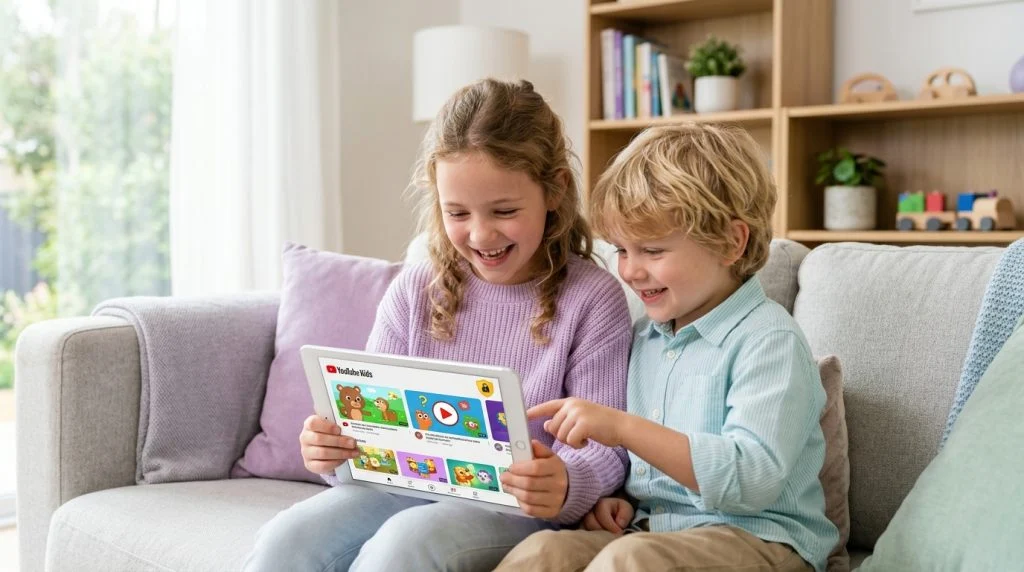
Few platforms offer the educational richness and sheer entertainment variety of YouTube. From science tutorials and coding workshops to craft ideas, it is an extraordinary learning library. Yet, any parent who has watched an innocent search spiral toward clickbait, graphic gaming clips, or adult commentary knows how quickly the algorithm can veer off course. Setting up effective YouTube parental controls is no longer just a technical precaution; it is a foundational part of modern parenting.
Part of our complete guide: Phone Monitoring Software: The Complete Guide
The challenge is that YouTube is not a monolithic application. It lives on school Chromebooks, living room smart TVs, pocket smartphones, and gaming consoles. A setting toggled on your living room tablet does not automatically carry over to your child’s browser when they visit a friend’s house or switch accounts. Navigating these overlapping layers can feel confusing, leaving parents uncertain whether their safeguards actually work when unsupervised eyes are on the screen.
Establishing digital boundaries does not require technical wizardry or constant conflict. By pairing native safety features with realistic oversight, you can grant your children room to explore while quietly guarding against inappropriate content. This guide walks you through every layer of YouTube safety across all major devices, explains where native filters fall short, and shows you how to establish durable digital safeguards.
Understanding Native YouTube Safety Options
Before adjusting sliders and menus, you need to understand the three distinct tiers Google provides for content moderation: YouTube Kids, Restricted Mode, and Supervised Google Accounts. Each tier addresses a different developmental stage, and confusing them is the most common reason parents find built-in protections lacking.
YouTube Kids vs. The Standard Platform
YouTube Kids is an entirely separate ecosystem housed in its own app and web address. Rather than granting access to YouTube’s vast public catalog, it restricts viewing to a curated subset of videos reviewed through automated filters, user feedback, and human evaluation. Within YouTube Kids, you can select from three age tiers:
- Preschool (Ages 4 and under): Videos promoting creativity, playful learning, and exploration.
- Younger (Ages 5–8): Cartoons, crafting, simple educational songs, and foundational school topics.
- Older (Ages 9–12): Popular music, gaming clips, family vlogs, and science projects geared toward elementary students.
While YouTube Kids provides the safest environment for elementary-aged children, older kids and young teens often reject it because the interface feels juvenile and excludes niche hobby channels or educational series. That is where supervised accounts come into play.
Supervised Google Accounts
Introduced to bridge the gap between YouTube Kids and the unfiltered platform, a Supervised Account runs through Google Family Link. When a child under 13 (or the relevant legal age in your region) has an account managed by a parent, you can grant them access to standard YouTube under one of three content maturity settings:
- Explore: Generally aligned with content rated for viewers aged 9 and older, filtering out live streams and mature themes.
- Explore More: Aligned with content rated for viewers 13 and older, opening up broader music, vlogs, and gaming, while restricting highly graphic or sexually explicit themes.
- Most of YouTube: Grants access to nearly everything except age-restricted content that YouTube deems strictly 18+.
Supervised accounts also disable in-app purchases, comments, and the ability to post videos, preventing unwanted interactions with strangers in the comments section.
Restricted Mode
Restricted Mode is an optional setting available on standard, non-supervised YouTube. It operates at the browser, device, or network level. Google uses metadata, title keywords, video descriptions, and community flagging to screen out potentially mature content. It acts as an algorithmic blunt instrument: it catches overtly explicit videos, but it does not let you tailor maturity levels by age, and it can easily be toggled off unless specifically locked down.
How to Configure YouTube Parental Controls Across Devices
Because children switch between smartphones, laptops, and living room televisions, effective safeguards must be applied across every screen they use. Here is how to configure each touchpoint correctly.
Configuring Web Browsers (Chrome, Safari, Edge)
On desktop and laptop computers, Restricted Mode must be turned on per browser. If your child switches from Chrome to Safari or Edge, an unrestricted browser will bypass your settings.
- Open your web browser and navigate to YouTube’s official settings page or the YouTube home screen.
- Click on your profile avatar in the upper right-hand corner.
- Scroll to the bottom of the flyout menu and click on Restricted Mode: Off.
- Toggle the switch to Activate Restricted Mode.
- To prevent your child from turning it off, click Lock Restricted Mode on this browser. You will be prompted to enter your Google password to solidify the lock.
Repeat this procedure for every browser installed on the computer. If your child uses an administrative user account on the machine, they can clear browser caches or install new portable browsers, which resets this lock. Setting up separate standard user accounts on macOS and Windows prevents unauthorized browser installations.
Configuring Mobile Devices (Android and iOS)
Mobile platforms account for the vast majority of streaming hours. You should configure protections within both the operating system and the YouTube mobile application.
Inside the YouTube App:
- Open the YouTube app and tap your profile icon (or the “You” tab in the bottom right corner).
- Tap the gear icon (Settings) in the top right.
- Select General.
- Scroll down and toggle Restricted Mode to the on position.
Enforcing Supervised Settings via Family Link (Android):
- Open the Google Family Link app on your parent device.
- Select your child’s profile and tap Controls → Content restrictions.
- Select YouTube.
- Choose between YouTube Kids or standard YouTube with supervised settings (Explore, Explore More, or Most of YouTube).
On Apple hardware, you can also reinforce these restrictions by opening Settings → Screen Time → Content & Privacy Restrictions → Store, Web, Siri & Game Center Content. Under Web Content, select Limit Adult Websites. This prevents mobile browsers from accessing adult domains and restricts uncensored media searches.
Setting Watch-Time Reminders and Bedtime Limits
Excessive consumption can disrupt sleep and homework routines. YouTube includes built-in wellness prompts that parents can turn on to help children build healthy media habits:
- Remind me to take a break: In the app Settings under General, tap this option and set an interval (for example, every 30 or 45 minutes). When the timer expires, the video pauses until dismissed.
- Remind me when it’s bedtime: Under the same menu, toggle this setting to set specific hours (such as 9:00 PM to 6:00 AM) during which YouTube displays a reminder to stop watching.
- Autoplay switch: In Settings under Autoplay, turn off “Autoplay next video.” This single change interrupts passive rabbit-hole viewing by forcing your child to actively choose the next video.
Smart TVs and Streaming Devices
Smart TVs present a unique challenge because multiple family members frequently share the same television app without logging in and out.
- Open the YouTube app on your smart TV, Apple TV, Roku, or Android TV.
- Navigate to the left-side navigation menu and select Settings (the gear icon).
- Scroll down and select Restricted Mode or Safety Mode.
- Toggle the option to On.
If your smart television supports separate user profiles (as seen on Google TV or Apple TV), create a dedicated profile for your children and enforce app download limits through a PIN. This stops tech-savvy youngsters from deleting the configured app and reinstalling a fresh, unconfigured copy.
The Limitations of Built-In YouTube Filters
Native parental controls are a helpful first step, but relying entirely on them often gives parents a false sense of security. Algorithmic moderation is fundamentally reactive, and children are remarkably creative when they want to bypass digital boundaries.
| Safety Mechanism | What It Covers | Common Blind Spot / Bypass |
|---|---|---|
| Restricted Mode | Screens mature titles, descriptions, and user flags | Easily bypassed in private browsing or guest windows |
| Family Link Supervision | Enforces age tiers and disables public commenting | Ineffective if child creates a secondary unregistered account |
| YouTube Kids App | Restricts catalog strictly to curated and algorithmic tiers | Weird algorithmic content slips through; older kids refuse to use it |
Incognito Windows and Guest Sessions
The simplest way around browser-based Restricted Mode is opening an incognito or private browsing window. Because private windows do not load your saved browser profile or stored cookies, YouTube treats the visitor as an anonymous guest. Unless you have locked down the local browser using administrative device policies, your child can search the entire platform without restriction in an incognito tab.
Secondary Accounts and Sideloading
Kids frequently create secondary Google accounts that their parents know nothing about. They register using a friend’s device or an alternate email address, then simply switch accounts inside the YouTube app on their phone or tablet. In a matter of seconds, your carefully configured Family Link parameters are replaced by an adult-rated profile. On Android devices, children may even download third-party open-source frontends or modified video players that strip out YouTube’s restrictions and advertisements altogether.
Algorithmic Errors and Borderline Material
No algorithm is infallible. Millions of hours of video are uploaded to YouTube daily, making human review of every clip impossible. Independent child safety analyses from organizations like Common Sense Media have repeatedly shown that inappropriate themes—ranging from disturbingly animated parodies of popular cartoon characters to subtle self-harm discussions—can slip past basic filters. Algorithmic tags rely heavily on titles and keywords; creators who deliberately obscure their video tags can easily evade automated sweeps.
Achieving Complete Digital Oversight with SPYERA
When native filters fall short, responsible parents need tools that provide visibility rather than just automated promises. This is particularly true for pre-teens and teenagers navigating complex social dynamics, cyberbullying, or online influences that simple content blockers fail to detect.
Operating continuously since 1999, SPYERA has spent more than two decades refining digital monitoring tools that help parents see what built-in operating system toggles overlook. Instead of relying purely on YouTube’s automated categorizations, specialized monitoring software allows you to understand your child’s actual digital habits across all their applications.
When you install a dedicated solution like the SPYERA Android monitoring app or the SPYERA iPhone monitoring software on your child’s phone, you gain comprehensive visibility into their media consumption:
- Real-Time Screen Capture: Automated periodic visual captures show you precisely what is playing on the display, regardless of whether the video was accessed via the official app, a hidden browser tab, or an embedded link inside a messaging platform.
- Keystroke Logging: By capturing typed queries directly from the keyboard, keylogging reveals what your child is actively searching for before the algorithm even serves the result.
- Application Activity & Timelines: Track exact usage durations to see whether YouTube is being watched during school hours or late into the night beneath bedsheets.
- Cross-Platform Visibility: Whether your child switches from an Android phone to a home desktop, unified oversight across Windows, Mac, and mobile ensures you are never managing disconnected islands of safety settings.
If your household relies primarily on family tablets or desktop workstations for schoolwork, deploying tools designed specifically for family protection allows you to keep an eye on streaming behavior without hovering over their shoulders while they study.
A note on lawful and ethical use: Digital monitoring tools should always be used responsibly and in full compliance with local regulations. Parents have a duty to safeguard their minor children, but privacy expectations change as kids mature. Where appropriate, open dialogue about why safety tools are active builds far more long-term character and digital resilience than covert monitoring alone.
A Balanced Strategy for Long-Term Digital Safety
Technical controls are indispensable shields, but they work best alongside healthy communication. Consider using this simple three-part framework to maintain safety as your children grow:
- Implement Technical Foundations: Turn on Restricted Mode, set up Supervised Accounts through Family Link, and lock down device installation privileges to create your baseline perimeter.
- Maintain Deep Oversight: Utilize comprehensive monitoring tools on primary devices to verify that native settings are holding up against bypass attempts and private browsing.
- Have Regular Check-Ins: Sit down with your child periodically to look at their recommendation feeds together. Ask about their favorite creators, discuss why certain videos cross family boundaries, and make sure they know they can come to you without judgment if they stumble across something disturbing.
The goal is not to isolate your child from modern digital culture, but to guide them through it safely until they develop the mature judgment to navigate the internet on their own.
How SPYERA Can Help
SPYERA has helped parents and employers with YouTube parental controls since 1999. Monitor calls, messages, locations, and app activity on Android, iPhone, Windows, and Mac — used responsibly, with consent, on devices you own or are authorized to monitor.
Frequently Asked Questions
Can my child easily turn off Restricted Mode on YouTube?
On a standard web browser or mobile app without account supervision, anyone can toggle Restricted Mode off with two taps. To prevent your child from disabling it, you must lock the setting using Google Family Link or enforce restrictions at the browser or network level.
What is the primary difference between YouTube Kids and a supervised account?
YouTube Kids is a standalone, walled-garden app designed strictly for younger children with hand-curated and algorithmic content tiers. A supervised Google account operates on the regular YouTube app and website, offering tiered content maturity filters suitable for pre-teens and teenagers.
Does incognito mode bypass YouTube parental controls?
Yes. When a teenager opens an incognito window or logs out of their Google profile, YouTube reverts to default guest settings where account-level restrictions do not apply unless you have locked Restricted Mode at the browser or device level.
How can I set daily screen time limits specifically for YouTube?
You can establish daily limits using Google Family Link for Android devices, Apple Screen Time for iPhones and iPads, or directly inside the YouTube mobile app using the “Remind me to take a break” and “Bedtime reminder” tools.
Is it legal to monitor my child’s YouTube watch history and searches?
Yes. Parents and legal guardians have the legal right and responsibility to monitor the digital activities of their minor children on devices they provide. Always review local privacy regulations, and consider having transparent conversations with older children about digital safety.