

SPYERA can be installed on both rooted and non-rooted Android devices, but if you want unlimited access to every advanced monitoring feature, you’ll want to root Samsung S10 first. This updated 2026 guide walks you through exactly how to root a Samsung Galaxy S10, S10+, or S10e using the current versions of Magisk and Odin. If you’ve been searching for samsung s10 root instructions that still work, or you specifically need to root samsung s10e, this tutorial covers every model in the series step by step.
This tutorial shows you how to root Galaxy S10, how to root Galaxy S10+ (also written root Galaxy S10 Plus or root galaxy s10 plus), and how to root Galaxy S10e — sometimes searched as root s10e, s10e root, or root Galaxy S10e. If you searched how to root s10, root s10 plus, or how to root s10 plus, this guide covers every step from unlocking the bootloader to flashing Magisk with Odin.
Important: Only root and monitor a device you personally own or have explicit authorization to manage — for example, your minor child’s phone or a company-owned device with the employee’s consent. Rooting without permission, or on a device you don’t own, may be illegal in your jurisdiction.
Supported Variants & Models
- Samsung Galaxy S10 (SM-G973F)
- Galaxy S10+ (SM-G975F)
- Galaxy S10e (SM-G970F)
Carrier note: This method only works on international, Exynos-based models (the “F” model numbers above, sold outside the US). US carrier variants of the Galaxy S10, S10+ and S10e (Verizon, AT&T, T-Mobile, Sprint — Snapdragon “U” models) ship with a permanently locked bootloader and cannot be rooted this way. If you’re not sure which one you have, check “Settings > About phone > Model number” before you start.
Why Root Your Galaxy S10 for SPYERA
SPYERA’s core features — call recording, SMS tracking, GPS location and social media monitoring — all run on non-rooted Android phones. Root access is only required for the deepest, most advanced capabilities, such as the Android keylogger that captures every keystroke system-wide, including inside end-to-end encrypted apps. If you’re rooting specifically to unlock full monitoring on an Android device, this guide gets you there safely.
Preparations
Before you root Samsung S10, S10+ or S10e, make sure you meet the requirements below.
- The rooting process will wipe the device completely, including internal storage. Back up all your data before you proceed.
- Charge your device to at least 50% battery.
- Download and install the Samsung USB drivers.
- Download and unzip the latest version of Odin (v3.14 or newer is recommended).
- Download the latest Magisk APK from the official Magisk GitHub releases page — the old “Magisk Manager” app was folded into the main Magisk app in 2021, so you only need one APK now.
Step 1 — Unlock the Bootloader
To root Samsung Galaxy S10, S10+ or S10e, you must first unlock the bootloader.
- Go to ‘Settings’ > ‘About phone’ > ‘Software information’ on your Galaxy S10.
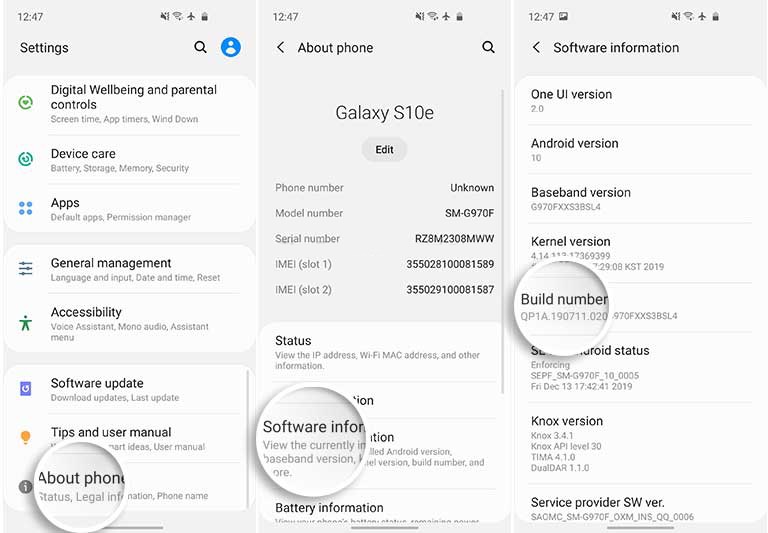
- Tap on the ‘Build number’ section repeatedly to enable ‘Developer options’.
- You should see a “Developer mode has been turned on” message on screen.
- Go back to ‘Settings’, scroll to the bottom and tap ‘Developer options’.
- Tap the ‘OEM Unlocking’ toggle and select ‘Turn on’.
- Power off your device completely.
- While it’s off, connect it to your PC with a USB cable while holding the “Bixby” and “Vol Down” buttons together.
- Release those buttons, then press and hold “Vol Up” to unlock the bootloader on your Samsung Galaxy S10, S10+ or S10e.
- Your device will wipe itself completely and reboot automatically. Important: skip the initial setup, connect to Wi-Fi, but don’t sign in to any accounts yet.
- Once booted, re-enable “OEM Unlocking” by repeating steps 1–5 above.
- Confirm “OEM Unlocking” in “Developer Options” is “ON” and greyed out. If so, you’re ready to proceed.
Step 2 — Root Samsung Galaxy S10, S10+ or S10e with Magisk
- Download the matching stock firmware for your model: Galaxy S10 (SM-G973F) — Download Link | Alternative Link
Galaxy S10+ (SM-G975F) — Download Link | Alternative Link
Galaxy S10e (SM-G970F) — Download Link | Alternative Link - Extract the downloaded firmware on your PC.
- Copy the ‘AP’ file (.tar or .tar.md5) to your device’s storage.
- On your Galaxy S10 device, install the Magisk APK you downloaded earlier.
- Open Magisk and tap ‘Install’, then ‘Install’ again, then ‘Select and Patch a File’.
- Browse to and select the AP file you transferred in step 3.
- Magisk will patch the file and save the output — typically named “magisk_patched-[version].tar” — to ‘[Internal Storage]/Download/’.
- Transfer the patched .tar file back to your PC.
- Launch Odin on your PC.
- Power off your Galaxy S10 device and boot into Download Mode by holding the Bixby and Volume Down buttons together, then connect it to the PC via USB.
- In Odin, the ‘ID: COM’ port should light up once the device is detected.
- Important: open the ‘Options’ tab in Odin and uncheck ‘Auto-Reboot’.
- Click ‘AP’ and select the patched Magisk .tar file.
- Click ‘Start’ to flash Magisk and root your Samsung Galaxy S10, S10+ or S10e.
- Now boot into stock recovery to perform a factory data reset. Press ‘Power‘ and ‘Volume Down‘ to exit Download Mode. As soon as the screen turns off, press ‘Power‘, ‘Bixby‘ and ‘Volume Up‘ together until the stock recovery screen appears.
- Use the Volume buttons to highlight ‘Wipe data/factory reset’ and press Power to select it.
- Select ‘Reboot system now’, then immediately hold Power, Bixby and Volume Up together until the Bootloader Warning screen appears.
- Release all buttons to boot your Galaxy S10, S10+ or S10e into the rooted system.
- Once booted, open the Magisk app — it will finish the remaining setup automatically. Your device will reboot once more, fully rooted with Magisk.
Install SPYERA on Your Rooted Galaxy S10
Once your Samsung Galaxy S10, S10+ or S10e is rooted, install SPYERA to unlock every advanced monitoring feature, including precise GPS location tracking. Not sure which plan you need? Compare all monitoring tiers on the SPYERA pricing page before you install.